Turn On Memberships and Create a Plan
Memberships turn one-time visitors into regulars. Members join online, pay automatically, sign their waiver once, and check in with a member card. WaiverFile handles renewals, reminders and failed payments for you.
Turn memberships on
If you chose Memberships in the setup wizard, they're already on. Otherwise go to Activities › Memberships (or Memberships › Settings) and click Turn on memberships. A Memberships section appears in your menu with Plans, Members, Emails, Waiver campaigns, Import members and Settings.
Members pay by card, so connect your payment account first (see Connect Your Payment Account). Until then, people can see your plans but can't join online, and staff can record cash or check payments.
Create a plan
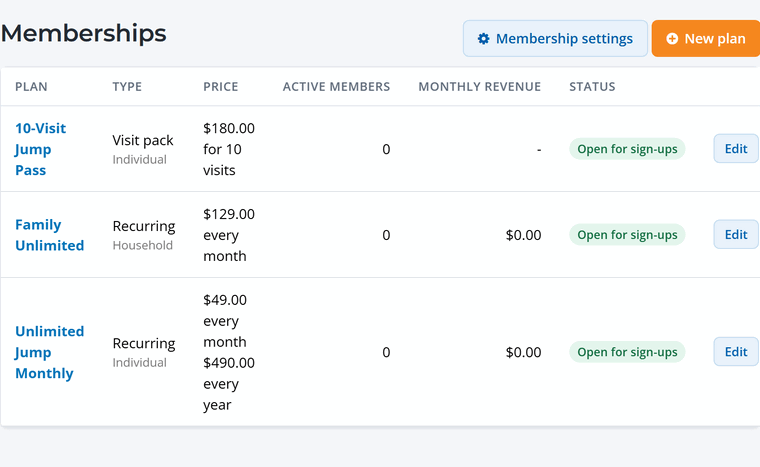
Go to Memberships › Plans and click New plan. The plan page is split into sections, top to bottom.
1. What are you selling?
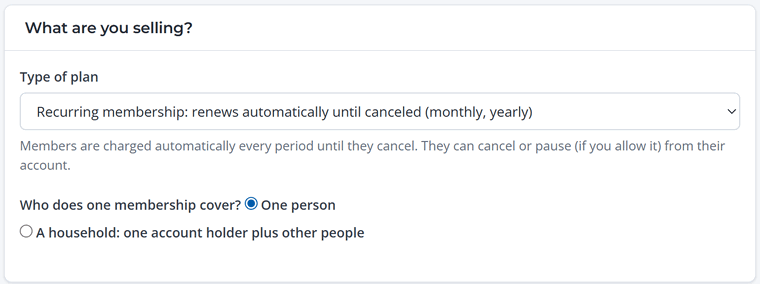
Pick the Type of plan (recurring, term pass or visit pack) and who one membership covers: One person or A household. See Recurring, Household, Term Passes and Visit Packs.
2. Details
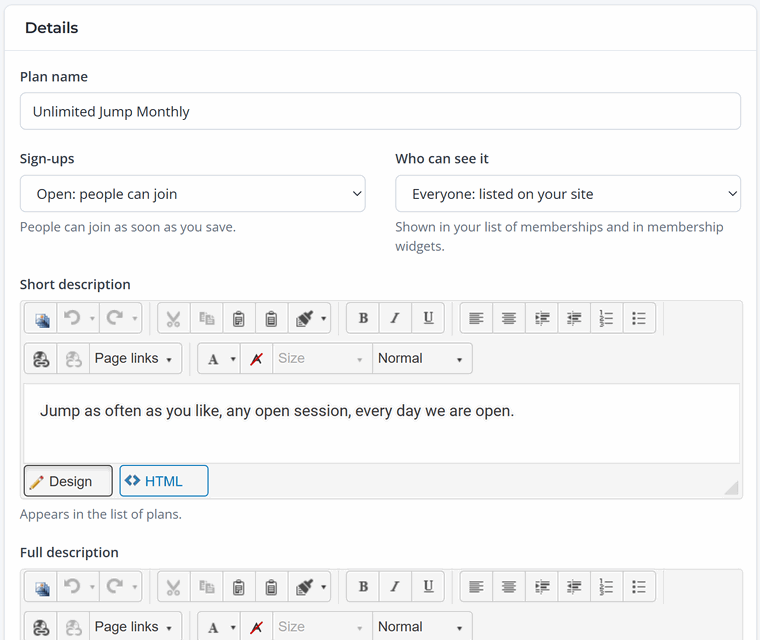
Name the plan, choose whether Sign-ups are open, and choose Who can see it: everyone (listed on your site), only people with the link, or staff only. Add a short and full description and a photo.
3. Price
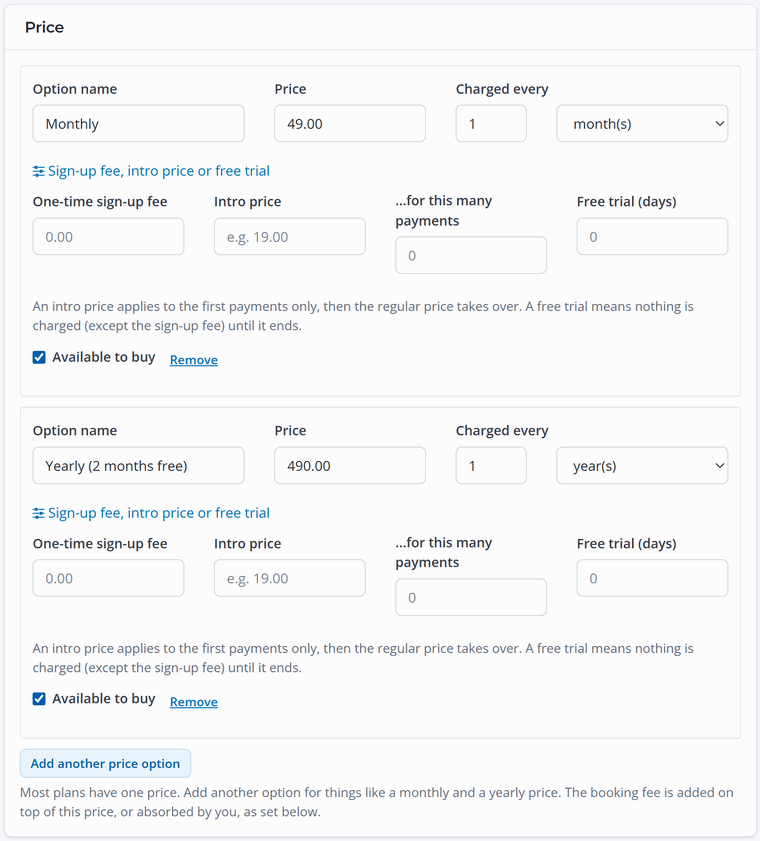
Enter the price and how often it's charged. Click Add another price option to offer, say, monthly and yearly on the same plan. Under Sign-up fee, intro price or free trial you can add a one-time joining fee, a lower price for the first few payments, or a free trial.
4. Booking fee and tax
Choose whether the booking fee is shown to the member or absorbed by you, and whether the plan is taxed.
5. Renewal, upgrades and pausing
Set a minimum commitment, whether members can turn off auto-renew themselves, how upgrades work, and whether members can pause.
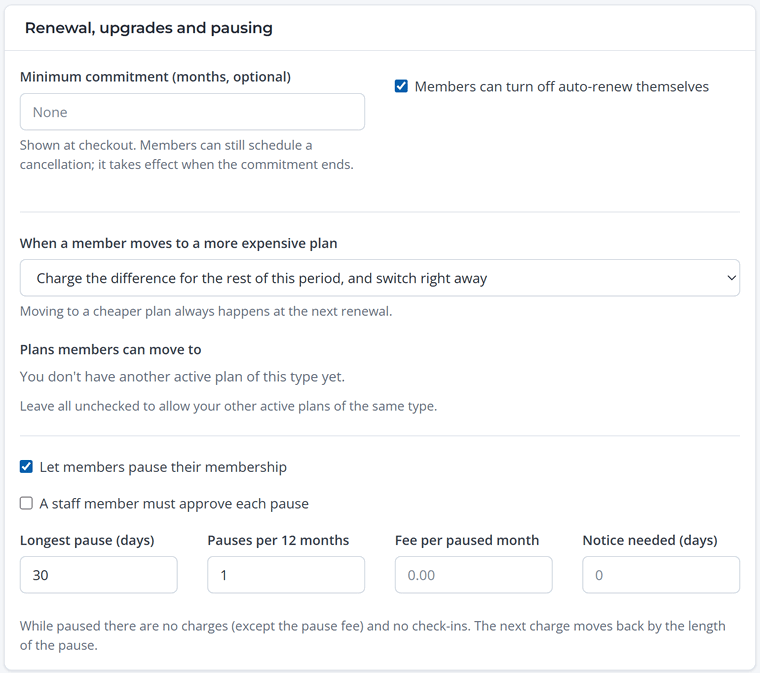
- Upgrades: charge the difference and switch right away, switch at the next renewal, or don't allow plan changes. Moving to a cheaper plan always happens at the next renewal.
- Pausing: set the longest pause, how many pauses per year, an optional monthly pause fee and the notice needed. While paused, members aren't charged and can't check in.
6. Waivers
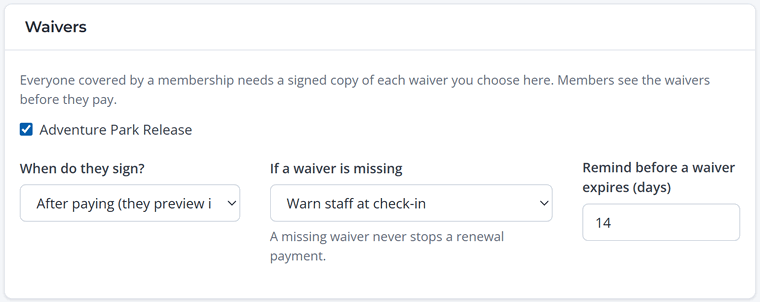
Choose the waiver members sign, whether they sign before or after paying (after paying, they preview it first), and what happens at check-in if a waiver is missing: do nothing, warn staff, or block check-in.
7. Member benefits and terms
Add perks like free entry or a discount (see Member Benefits), and choose how the auto-renewal terms are shown at checkout.
Click Save plan. If sign-ups are open and the plan is visible to everyone, it appears on your booking site with a Join button.
Start with one great plan. One unlimited monthly plan, plus a yearly option at a discount, covers most venues. Add a family plan or visit pack once you see what members ask for.