Your Booking Website
Every booking account comes with a website where guests browse what you offer, book and pay. You can use it as your main website, or link to it from the site you already have.
Build it with AI or start simple
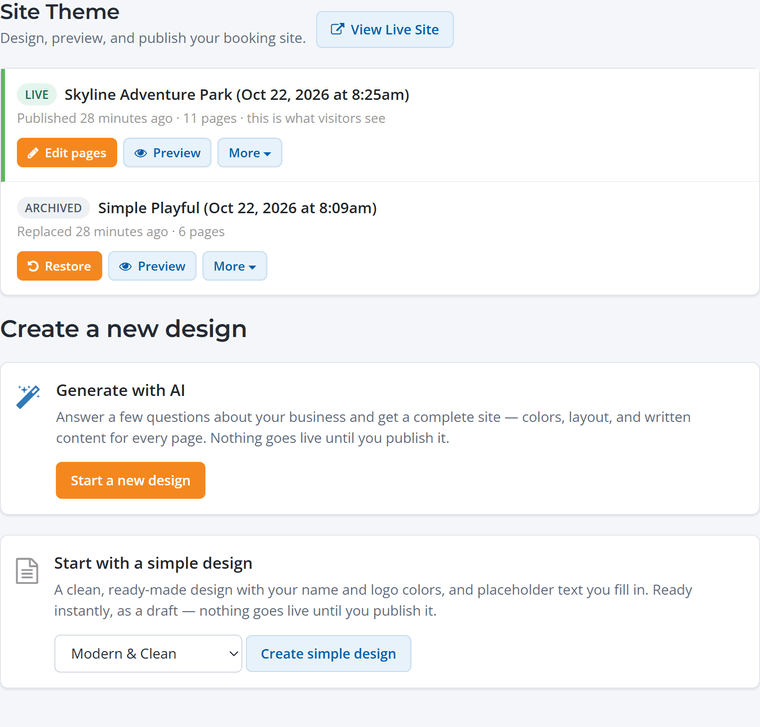
Go to Website › Theme. Under Create a new design you have two choices:
- Generate with AI. Answer a few questions about your business and WaiverFile writes a complete site: colors, layout, photos and the words on every page. It takes a few minutes and runs in the background.
- Start with a simple design. A clean, ready-made site with your name and colors, and placeholder text for you to fill in. It's ready instantly.
A new design is saved as a draft. Nothing changes on your live site until you click Publish.
Tips for a great AI site
The more the AI knows, the better the site. A couple of sentences about what you offer, who it's for and what makes you different goes a long way.
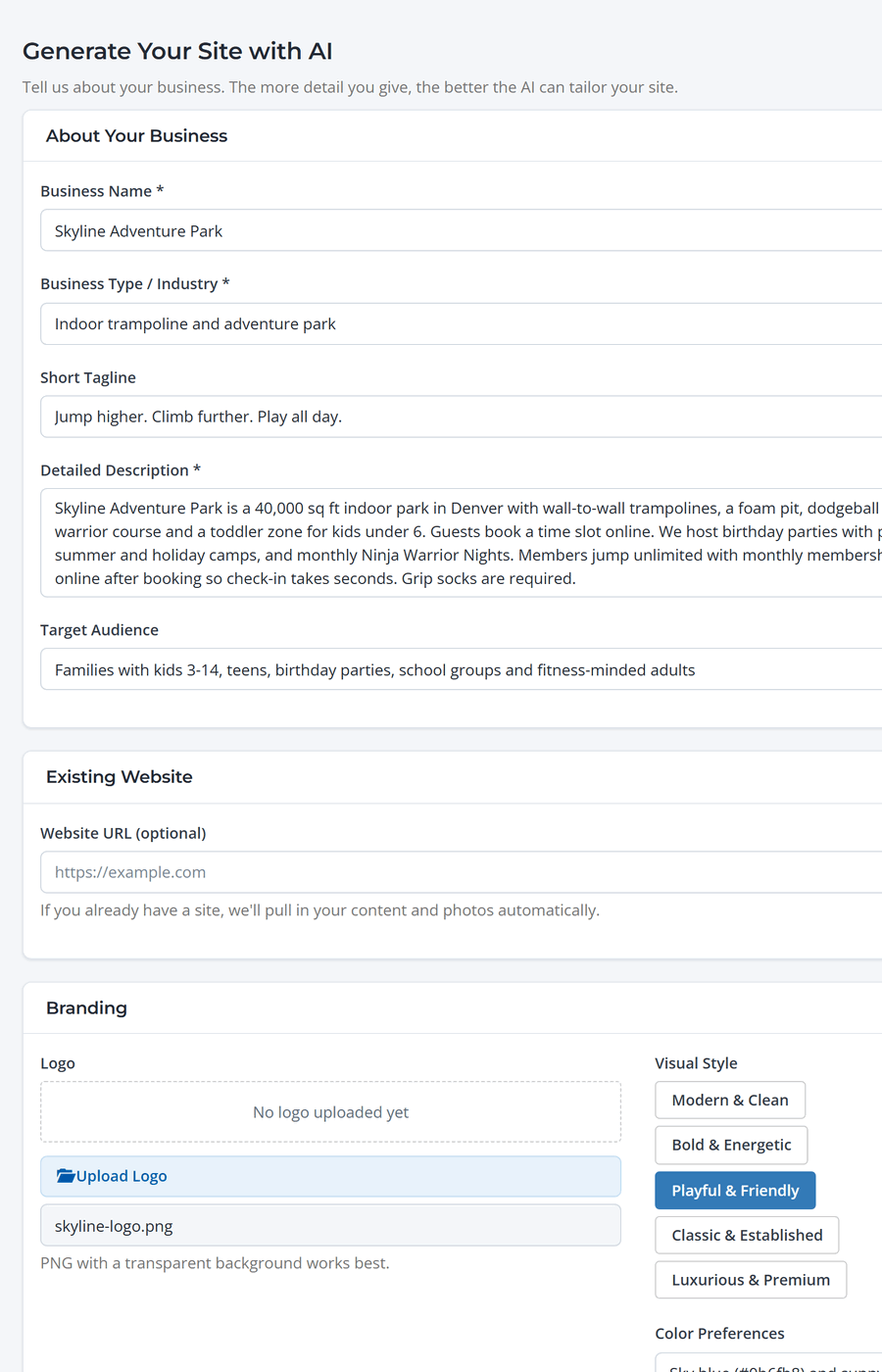
- Upload your logo. If you leave colors blank, the AI builds your color palette from your logo.
- Already have a website? Enter its address and the AI pulls in your existing content and photos.
- Pick the pages you want: Home, About, Services, Pricing, Gallery, FAQ, Contact and more.
- Use "Anything else?" for details like your address, hours, or "make Book Now the main button".
Photos come from your uploads, your existing site, or a free stock photo library, with credit shown automatically where required.
Edit your pages
Click Edit pages to edit your site right on the page. Each section has its own settings, and you can add widgets anywhere with Add a Widget. When you're happy, click Publish changes.
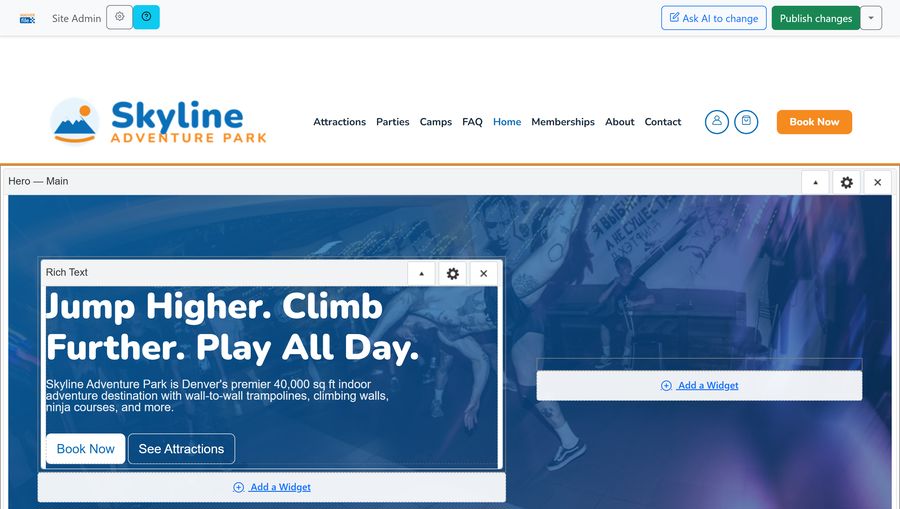
Prefer to describe what you want? Click Ask AI to change and type something like "add a section about birthday parties" or "make the header darker".
Booking widgets
These widgets show live information from your account, so they're always up to date:
- List Activities: your bookable items with photos, a short description and starting price.
- List Events and Event Calendar: upcoming events with dates and ticket prices.
- List Membership Plans and Membership Plan: your plans with a Join button.
Your site's Book Now button goes to the Book page, which lists everything you sell.
Your web address
Your site works right away at a WaiverFile address. To use your own domain, like book.yourpark.com or yourpark.com, go to Website › Domain Names. You can connect a domain you already own or buy a new one there.
Already have a website?
Keep it. Point your site's "Book" buttons to your WaiverFile booking page, or to a specific item, event or membership. Guests book on a page that matches your brand, and everything else stays the same.
Wording and languages
- Change the words on buttons and labels under Website › Wording, for example "Book Now" or "Guests".
- Offer your booking site in more than one language under Business › Languages (classic menu: Settings › Languages). Guests switch languages from the globe menu.