Open, Count and Close the Cash Drawer
Open the drawer with a float at the start of the day, record cash going in and out, and count it at the end. WaiverFile works out what should be there and shows whether you're over or short.
First add a drawer on the Printers & drawers tab of Check-in & devices › Devices (see Receipt Printers and Cash Drawers). Then go to Cash drawer, pick the drawer at the top, and click Use this drawer on this device on the computer at that register.
Open the drawer
- Count the starting cash in the drawer.
- Enter it as the Opening float. Your usual float is filled in for you. If the amount is much larger than usual, you're asked to confirm it.
- Click Open drawer.
Cash and check payments taken on this computer now go into the drawer's session, whether they're taken on the New sale screen or with Collect Payment on a booking.
During the day
- Paid in or out: record cash put in (more change) or taken out (a safe drop, petty cash) with the amount and a reason. Click Record paid in or out. You can't pay out more than the drawer should hold.
- No sale: opens the drawer without a sale, for example to make change. The reason is optional and goes on the drawer log. On the New sale screen, press F8.
The page shows what's in the drawer now and everything that happened in the session.
Count and close
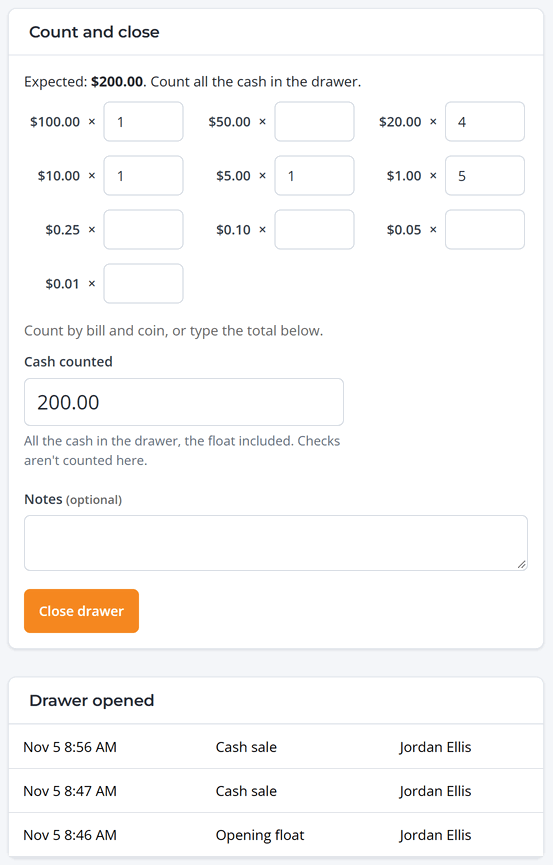
- Count the cash, including the float. Enter how many of each bill and coin and the total fills in, or type the total under Cash counted. Checks aren't counted here.
- Add notes if anything needs explaining.
- Click Close drawer. Cash taken after this goes into the next session.
You can't close the drawer while a card reader payment is still waiting, or while your own front desk sale has items in it. Finish or cancel it first.
The close report
After closing, the close report shows what was expected in the drawer, what was counted, and the amount over or short. Print it from your browser or on the receipt printer. Past sessions are listed at the bottom of the Cash drawer page.
Blind count. If the drawer is set to blind count, Moderators don't see the expected amount until the count is saved, so they count what's really there. Administrators always see it.
For a summary across drawers and staff, use the Front desk payments report. See Front Desk Fees, Refunds and Reports.