Classes and Camps with Several Dates
For a camp, a class series or a league, list every session on one event. Guests buy one ticket for the whole series and sign one waiver.
Add the sessions
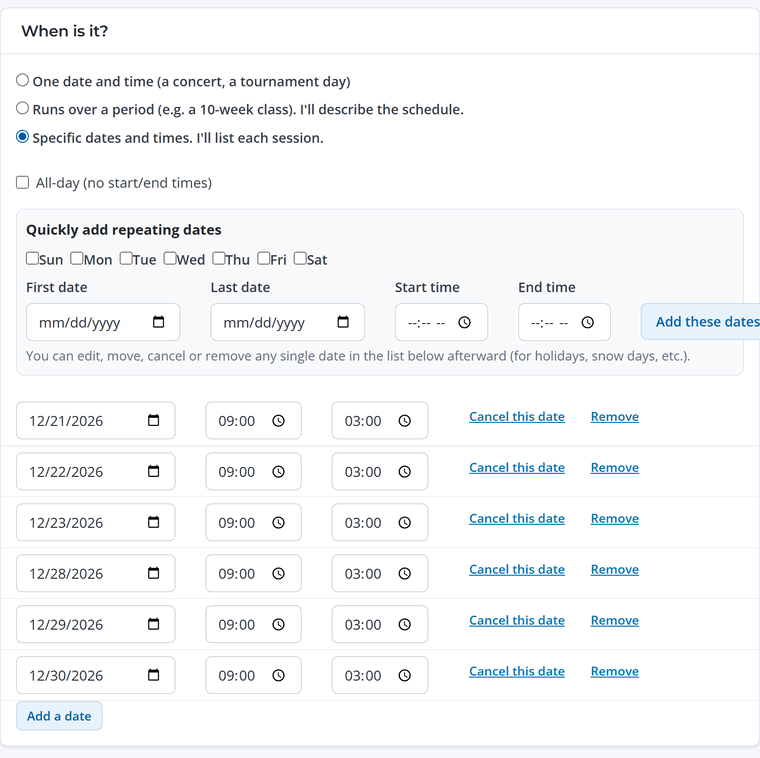
- Open the event and under When is it? choose Specific dates and times. I'll list each session.
- Use Quickly add repeating dates. Check the days of the week, pick the first and last date and the start and end time, then click Add these dates.
- Adjust single dates in the list. Change a date or time, click Add a date for an extra one, or Remove a date you added by mistake.
- Save event.
Cancel or move a session
Plans change: snow days, holidays, a coach out sick. Change the date or time on a session to move it, and it's marked as moved. Click Cancel this date to cancel it. The session stays on the list as cancelled, so anyone who added the event to their calendar sees the change.
Use the Missed-session / make-up policy under More options to tell families what happens if they miss a day.
Or describe a period
If you don't need every date listed, choose Runs over a period, set the first and last day, and describe the schedule in a sentence, for example "Tuesdays 4:00 to 5:00, January 6 to March 10".
Kids' camps. Set the ticket's Ticket is for to your child guest type. The parent buys the ticket and signs the waiver for their child, and you'll see the camper's name on the roster.