Cash, Card and Other Payments at the Desk
Take payment the way your guest wants to pay: cash, check, a card on the reader, a card read to you over the phone, the card they saved online, or a link to pay later. You can split one bill across several methods.
Payment methods
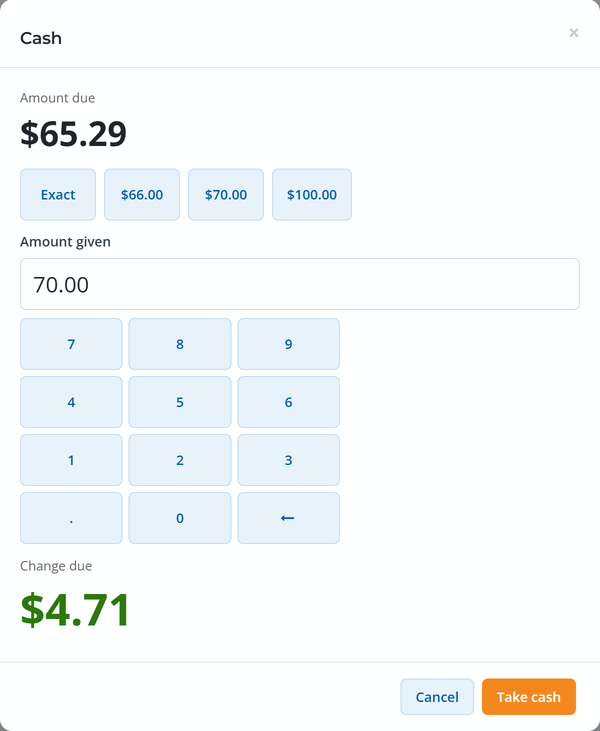
- Cash: enter the amount given, or tap a quick amount (exact, the next dollar, the next $5, or a bill). The change due shows in large type. Click Take cash. If the computer has a cash drawer, it opens.
- Check: enter the amount and the check number, and click Record check.
- Card reader: sends the amount to your Stripe card reader, and the guest taps, inserts or swipes their card. See below.
- Type card: for a card read to you over the phone. The card number goes straight to Stripe and isn't saved. If the bank asks for an extra check (3D Secure), it finishes on the same screen.
- Card on file: charges the card the customer saved when they booked online.
- Send payment link: saves the booking and emails the customer a secure link to pay online, with an optional message.
- Pay later: saves the booking with nothing paid. The spots are held, and you can collect the balance later from Find booking or with a payment link.
Card on file, payment links and pay later need a customer on the sale. Card payments need an active payment account (see Connect Your Payment Account).
Pay with the card reader
Once you have a card reader set up, Card reader is the first, highlighted payment button, with the other ways to pay below it. Without one, Cash comes first.
- Pick the reader above the Card reader button if you have more than one. The browser remembers it.
- Click Card reader (or press F2). The sale is saved and the amount appears on the reader.
- Let the guest pay. The screen follows along: Sent to the reader, Card presented, Approved.
If the card is declined or the guest changes their mind, use Try again, Cancel on reader or Pay another way. Check status asks Stripe for the latest result if the screen seems stuck. To set up a reader, see Card Readers.
Split payments
To split a bill, for example part cash and part card, change the Amount to collect before you choose a method. Take the first part, and the rest stays due on the booking. Take the next part the same way until the balance is zero.
Collect a balance on an existing booking
For a booking made online, or a front desk sale that wasn't paid in full:
- Click Find booking on the New sale screen.
- Search by name, phone, email, booking number or guest name, or scan the guest's check-in code with a USB or Bluetooth barcode scanner. A scan works anywhere on the New sale page, with no need to click the search box first.
- Open the booking. It shows Total, Paid and Balance due.
- Under Take payment, check the Amount to collect and choose a payment method.
You can also collect from the booking page itself with Collect Payment, which now takes cash and check as well as cards. See Collect a Balance or Send a Payment Request.
No tips or gift cards. The front desk doesn't take tips or gift cards. Card payments on the reader need an internet connection.
Fees
Cash and check payments have no WaiverFile fee. Card payments on bookings your staff create carry a small in-person fee that your guest doesn't see. Collecting the balance of a booking made online adds no extra fee. See Front Desk Fees, Refunds and Reports.