Collect a Balance or Send a Payment Request
When a booking has a balance, like the rest of a party after a deposit or extra pizza added on the day, collect it in a couple of clicks. Charge the card on file, take a new card, record cash or a check, or email the guest a link to pay.
Collect payment
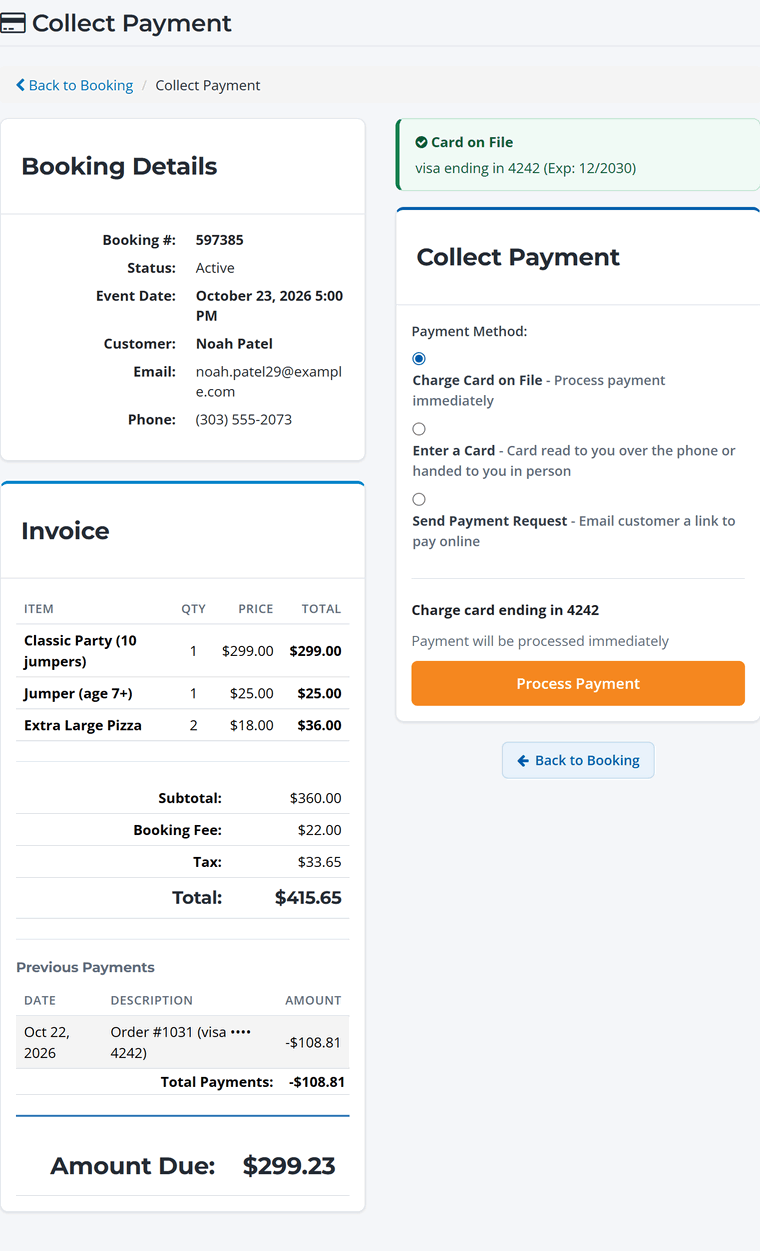
- Open the booking and click Collect Payment. The button shows the amount due.
- Check the invoice. You'll see what was booked, the booking fee, tax, previous payments and the Amount Due.
- Choose a payment method and click Process Payment (or Send for a payment request).
Payment methods
- Charge Card on File: charges the card the guest saved when they paid their deposit. The fastest option, with nothing for the guest to do.
- Enter a Card: for a card read to you over the phone or handed to you at the desk.
- Cash and Check: record a payment made at the desk. If this computer has a cash drawer open, the payment goes into it and the drawer opens.
- Send Payment Request: emails the guest a secure link to pay online, with an optional personal message. Check Cancel all pending requests when payment is collected so old links stop working once they've paid.
Guests can also pay a balance themselves from their booking page.
To take the balance on a card reader, or split it across several payment methods, use Find booking on the New sale screen and Take payment. See Cash, Card and Other Payments at the Desk.
Booking fee on deposits and balances. The booking fee is worked out on the whole booking and collected from the first payment, usually the deposit. The invoice shows the full booking fee (unless you absorb it), and the balance you collect later doesn't add any more.
Extra guests or items you add to a booking at the desk are charged a 1.5% fee when paid by card, which your guest doesn't see. Cash and check payments have no fee. See Front Desk Fees, Refunds and Reports.
Receipts
Every payment creates an order with a receipt the guest can view from their account. You can find all payments under Orders. See Orders and Refunds.