Membership Settings and Failed Payments
Settings that apply to all your plans live under Memberships › Settings: the booking fee default, early booking for members, failed payments, reminders, your auto-renewal terms and member emails.
General
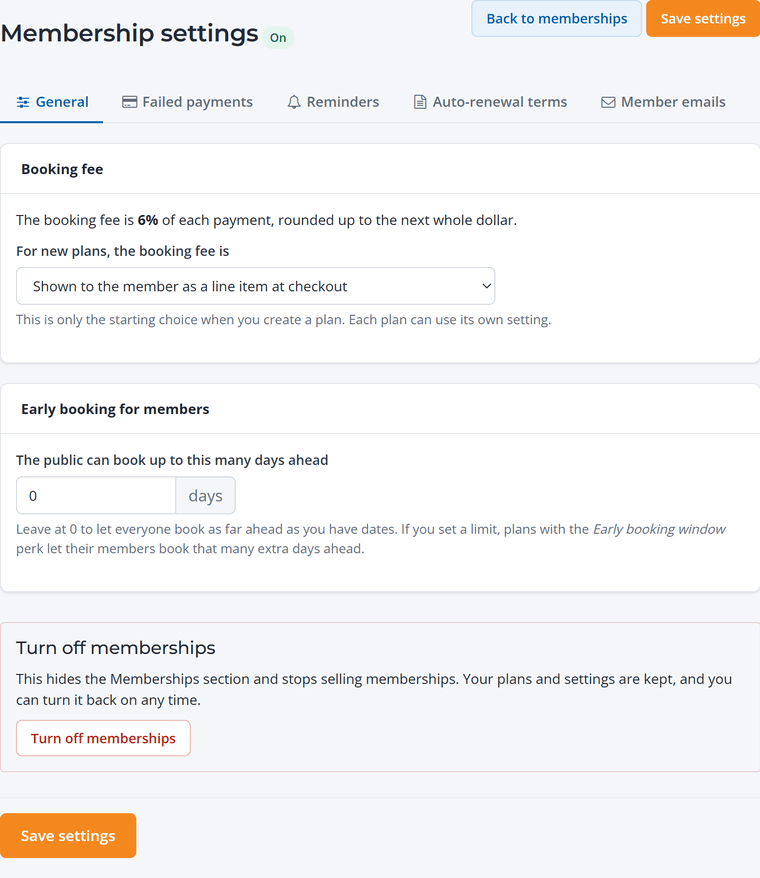
- Booking fee: the default for new plans, shown to the member or absorbed by you. Each plan can override it.
- Early booking for members: how many days ahead the public can book. Members with the "Book earlier than the public" benefit can book further out.
- Turn off memberships: hides the Memberships section and stops new sign-ups. Your plans and settings are kept.
Failed payments
Cards expire and banks decline. WaiverFile retries automatically, so you don't have to chase anyone.
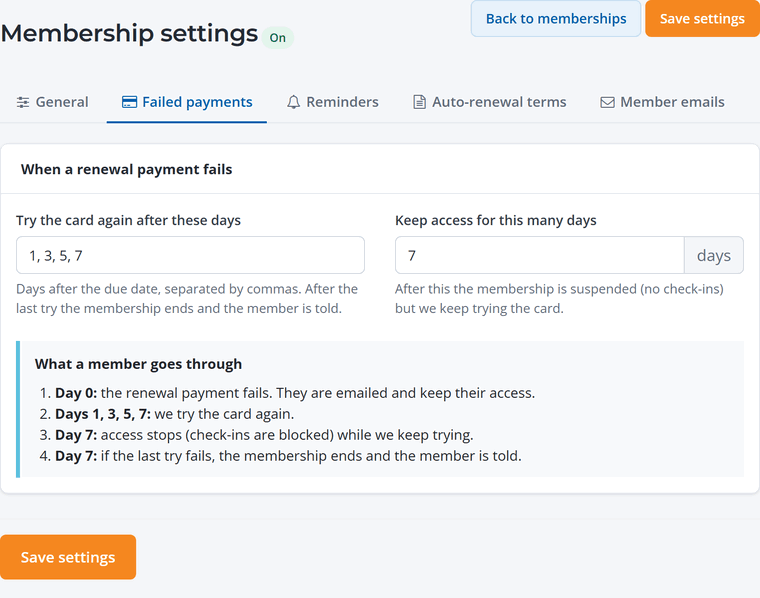
- Try the card again after these days: for example 1, 3, 5, 7 days after the payment fails.
- Keep access for this many days: members can still check in while you retry. After that, check-ins are blocked until they pay.
- The member is emailed when a payment fails, with a link to update their card. If the last try fails, the membership ends and they're told.
On Memberships › Members, choose Payment problems to see everyone with a failed payment.
Reminders
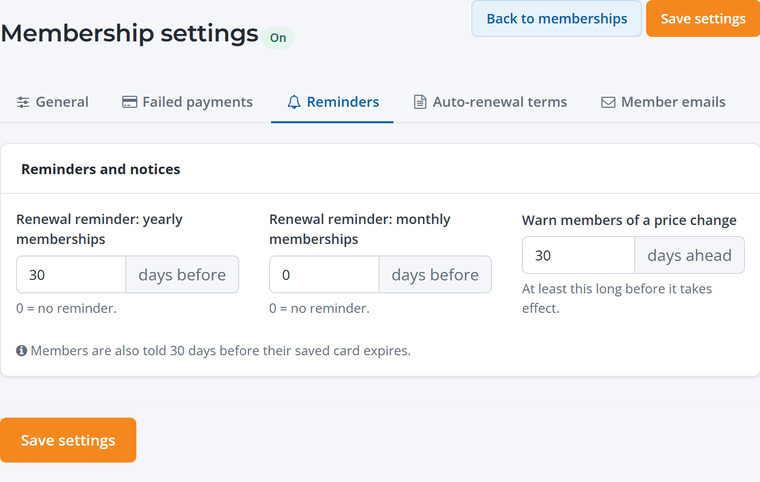
- Renewal reminders for yearly and monthly memberships, a set number of days before they renew (0 for none).
- Price change notice: how far ahead members are told about a price change.
- Members are also told 30 days before their saved card expires.
Check your local rules. Many states require advance renewal reminders for yearly memberships and a clear way to cancel. WaiverFile's defaults are a good starting point.
Auto-renewal terms
The terms members agree to when they join a recurring plan. They use fields like plan name and price that fill in automatically. Members see a plain-language summary at checkout, and check a box to agree.
Member emails
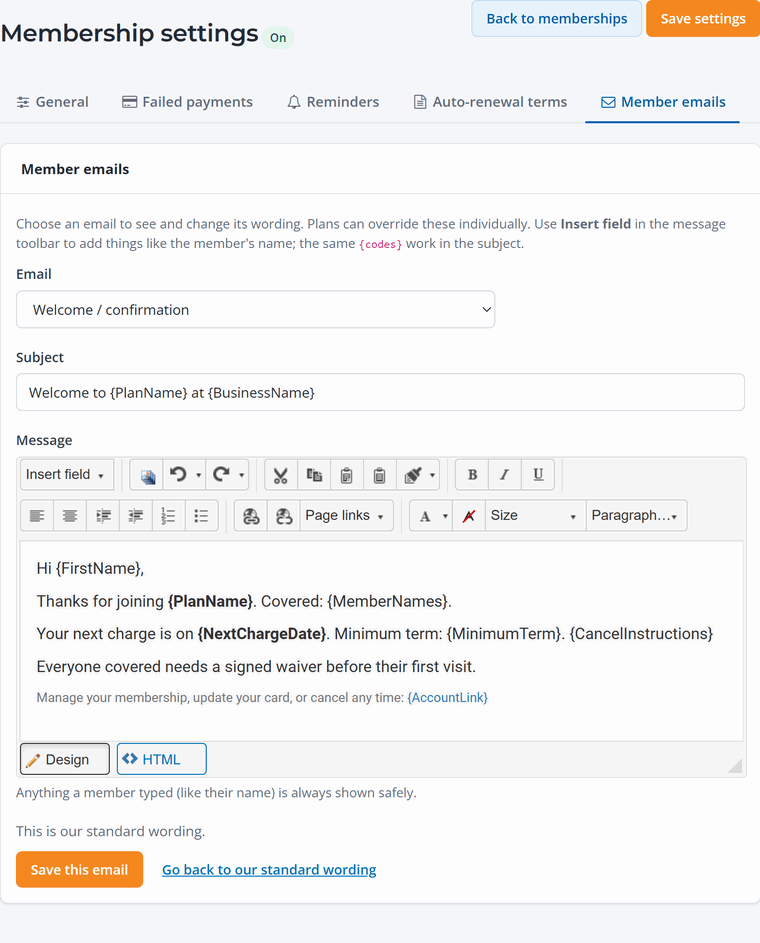
Every email members get, from the welcome message to renewal receipts and failed payment notices, can be reworded here. Choose an email, edit the subject and message, and use Insert field to add details like the member's name or next charge date. You can also change the wording for one plan from that plan's Emails to members section.