Create an Activity
An activity is anything guests book for a date (and usually a time): open jump, a climbing session, a court rental, a birthday party. Each activity has its own description, photos, schedule, prices, add-ons and waiver.
Add an activity
- Go to Activities › Activities and click Add activity.
- Enter a name and choose a Pricing Grid and Availability Schedule. If you're not sure, use the defaults. You can change both later.
- Click Continue. The activity opens with tabs for everything else.
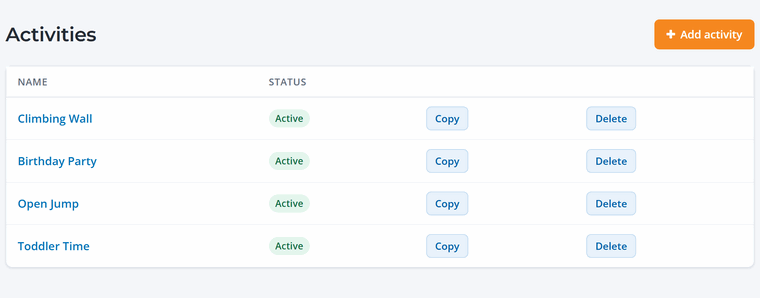
Use Copy on the list to start a new activity from an existing one. It's the quickest way to set up a similar activity.
Description
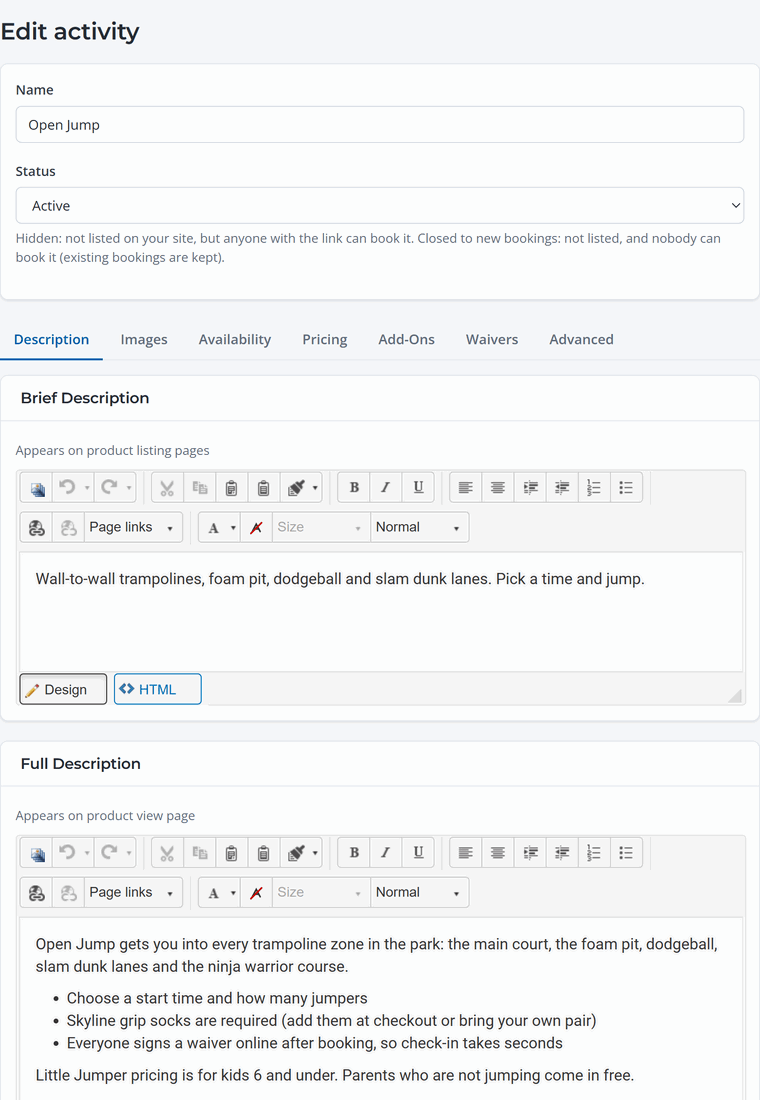
The Brief Description shows on your booking page next to the activity. The Full Description shows on the activity's own page, where guests pick a date. Keep the brief one to a sentence and put the details (what's included, age limits, what to bring) in the full one.
Images
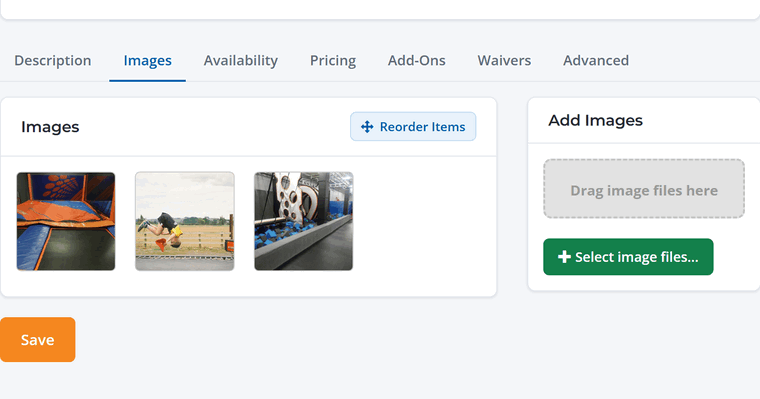
Drag photos onto the Images tab or click Select image files. The first image is the main one shown in listings. Use Reorder Items to change the order.
Availability
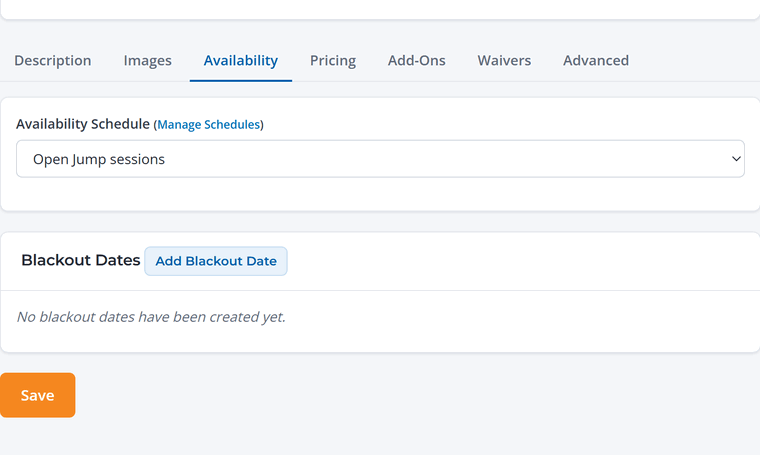
Choose which schedule this activity follows. The schedule sets the days, time slots and how many guests can book each slot. You can also add blackout dates for just this activity. See Schedules, Time Slots and Capacity.
Pricing
Enter a price for each guest type and time rule. For each one you can set a price, mark it Free (for example, parents who don't jump) or mark it Not Offered (for example, no toddler pricing on weekends). Bulk Pricing Tools fill the whole grid at once.
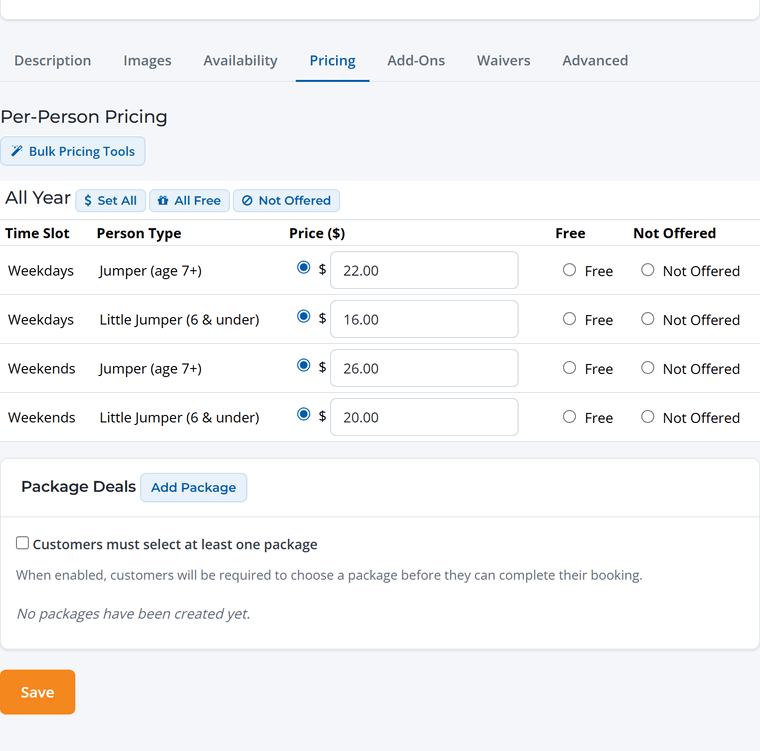
The rows come from the activity's pricing grid. See Guest Types and Time-Based Pricing to add guest types or weekday and weekend rates. Packages are set up at the bottom of this tab (see Packages and Deposits).
Add-ons, waivers and limits
- Add-Ons: extras guests can add when they book, like grip socks or pizza. See Add-Ons.
- Waivers: the waiver form everyone on the booking signs. See Attach Waivers to Activities.
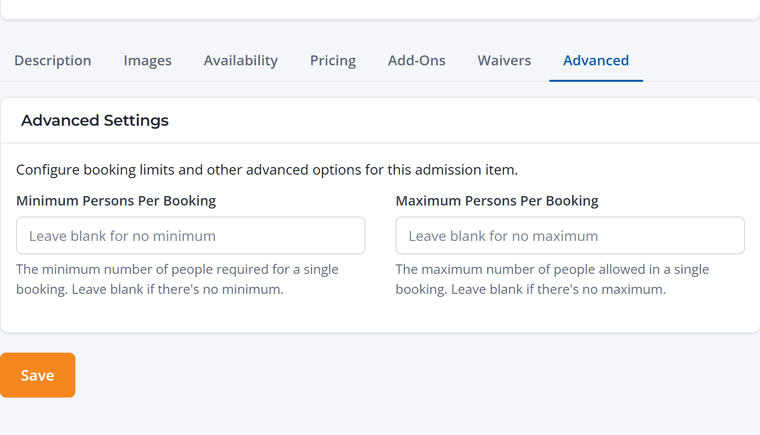
- Advanced: the minimum and maximum number of guests per booking. For example, a lane rental might need at least 2 and no more than 8.
Hide or remove an activity
Set Status to Hidden to stop selling an activity without losing its setup, for example one you only run in summer. Existing bookings aren't affected. Set it back to Active when you're ready to sell it again.