Guest Types and Time-Based Pricing
A pricing grid sets the shape of your prices: who pays (guest types, like adult and child) and when (time rules, like weekdays and weekends). Activities that share a grid share the same rows, and each activity has its own prices.
Open the pricing grid
Go to Activities › Pricing Grids. Most businesses only need the Default grid. Create another grid with New Grid if some activities price very differently, for example rentals priced per lane instead of per person.
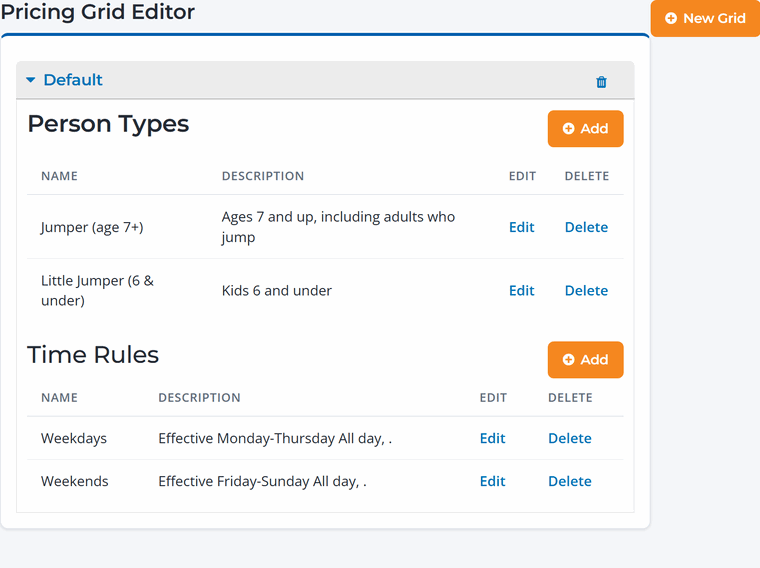
Guest types
Guest types are the choices guests see when they pick how many people are coming: Adult and Child, Jumper and Little Jumper, Member and Non-member, and so on.
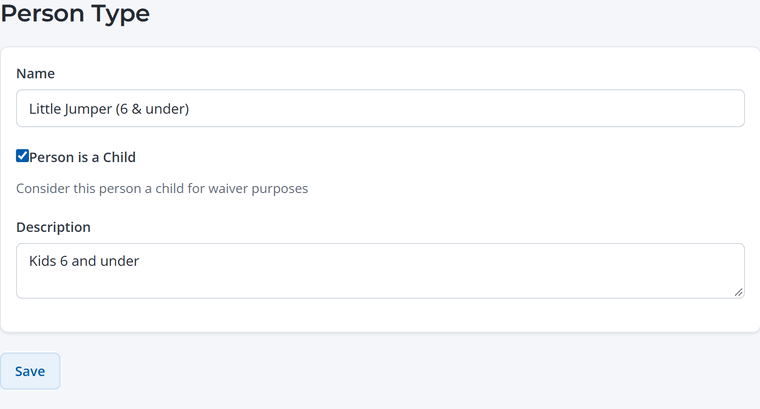
- Name and Description are shown to guests, so make them clear (for example "Little Jumper (6 & under)").
- Check Person is a Child for kids. A parent or guardian signs the waiver for them, and they're added to the parent's waiver instead of signing their own.
Time rules
Time rules let you charge different prices on different days or at different times. Each rule becomes a row on the activity's Pricing tab.
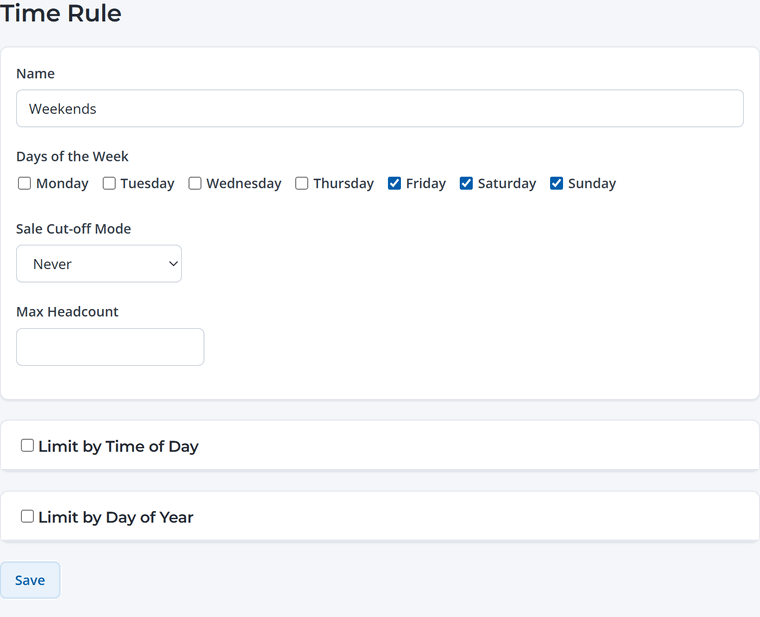
- Days of the Week: for example Monday to Thursday for weekday rates, and Friday to Sunday for weekend rates.
- Limit by Time of Day: for example a twilight rate after 6 pm.
- Limit by Day of Year: for a date range inside a season.
- Sale Cut-off Mode: stop online sales a set number of hours or days before (or after) the start time. Useful when you need a day's notice.
- Max Headcount: cap how many guests can book at this rate.
Peak and off-peak pricing. Charge a little more on busy weekends and less on quiet weekday afternoons. Guests who are flexible get a deal, and your quiet hours fill up.
Set the prices
After you add guest types or time rules, open each activity that uses the grid and fill in the new prices on its Pricing tab. See Create an Activity.