Managing Bookings
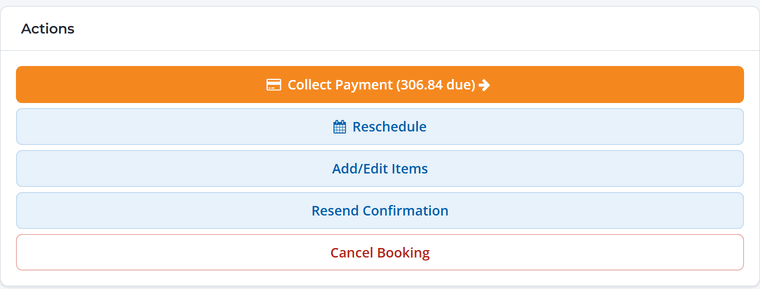
Every booking shows who's coming, whether they've signed, what they paid and what's still due. Staff can check guests in, collect a balance, change the date or cancel, all from one page.
The bookings list
Go to Bookings. By default you see the next 60 days. Use Show to switch to today, this week, recent bookings or a custom range, and Filters to narrow by booking status, waiver status (for example only bookings with missing waivers) or item.
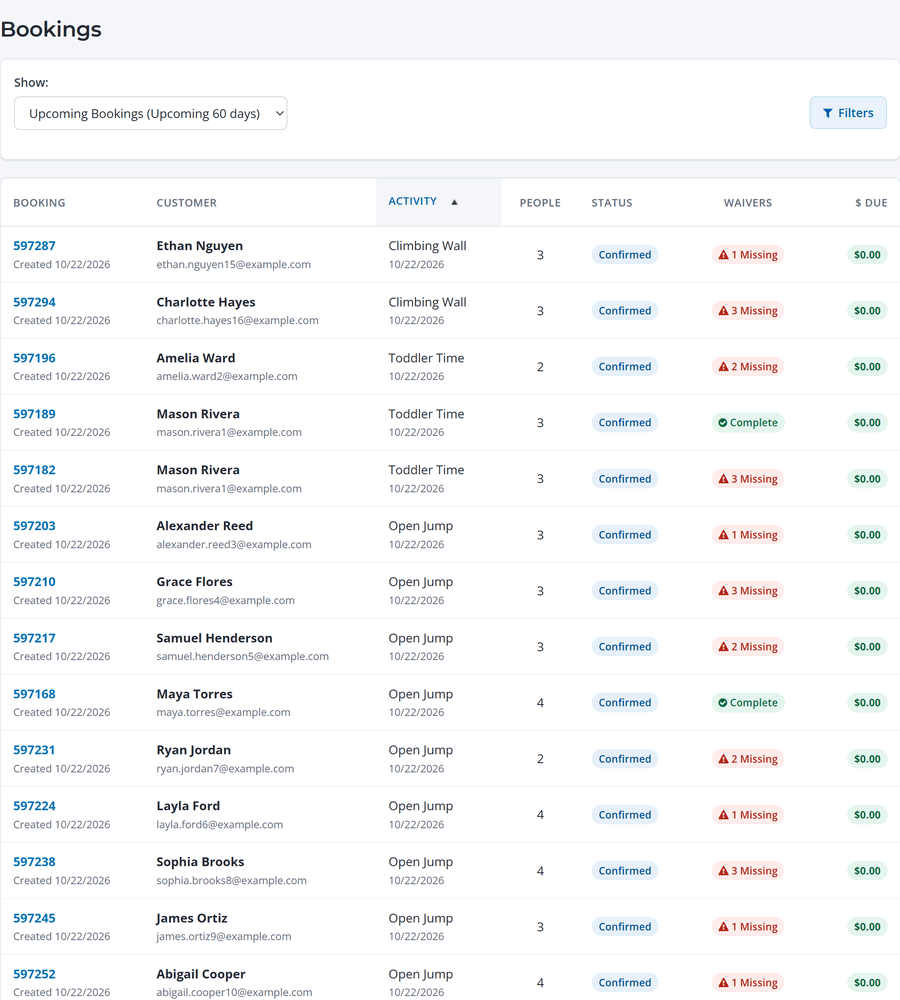
The Waivers column shows at a glance which groups still have people to sign, and $ Due shows any balance. Click a booking number to open it.
Inside a booking
Participants
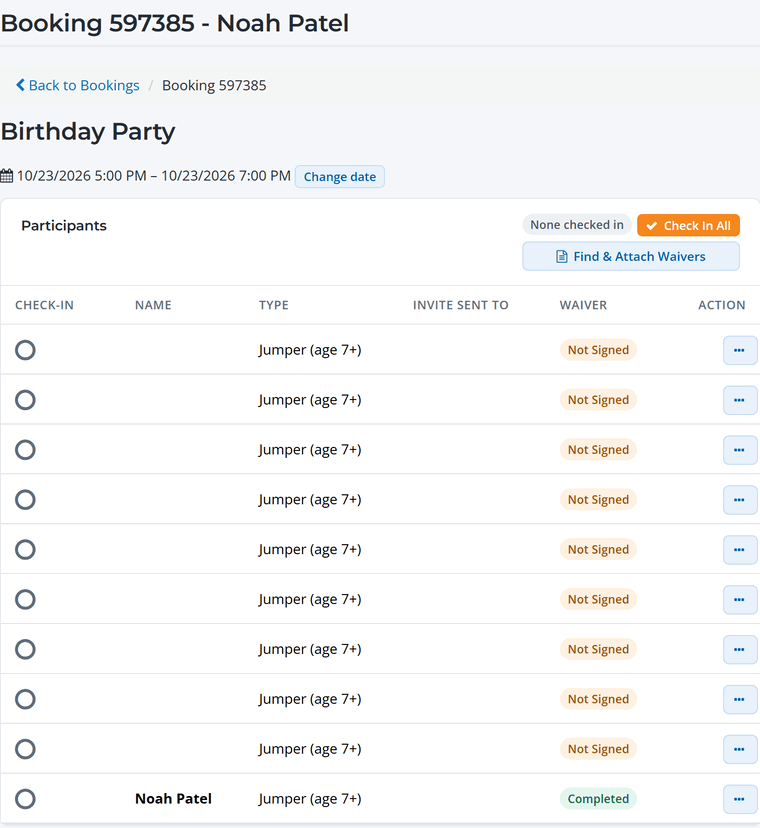
Everyone on the booking, with their guest type and waiver status. Click the circle to check someone in, or Check In All for the whole group. Use the … menu on a person to sign or send their waiver, or Find & Attach Waivers to link a waiver someone already signed.
Billing summary
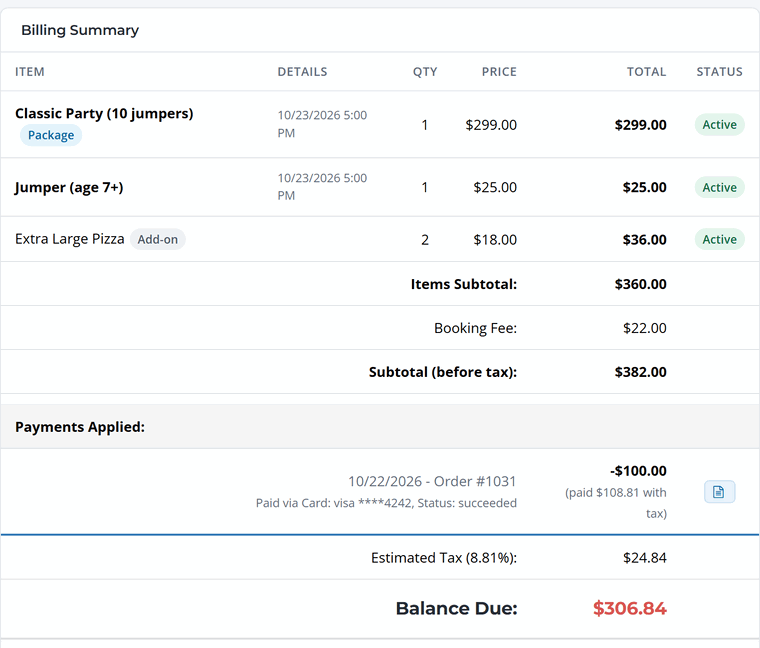
What was booked, the booking fee, tax, payments so far and the Balance Due. For deposits you'll see the deposit paid and what's left.
Actions
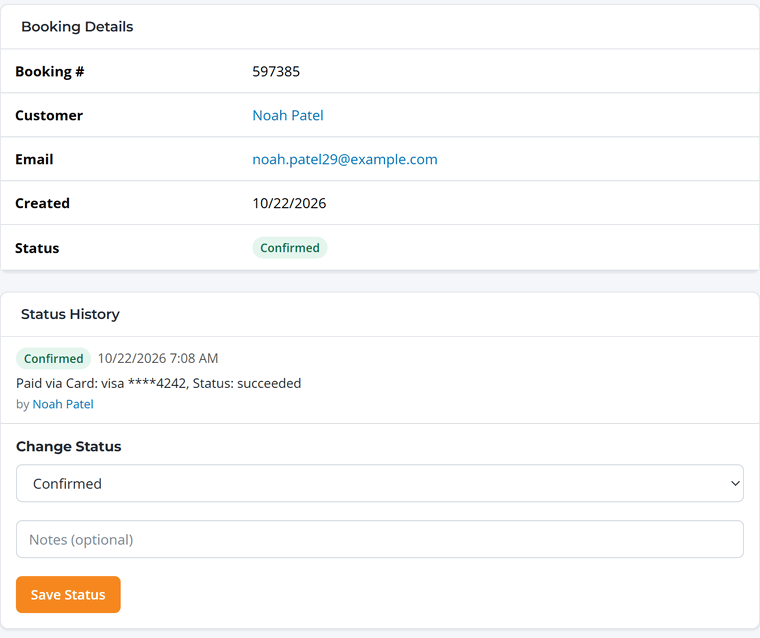
Status and notes
The status history shows what happened and when: confirmed, checked in, rescheduled, cancelled. To change the status by hand (for example to mark a no-show), pick it under Change Status, add a note if you like, and click Save Status.
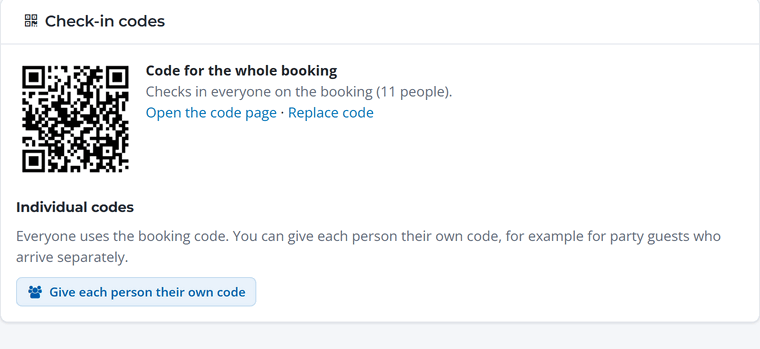
Check-in codes
If check-in codes are turned on, the booking shows its QR code. One code checks in the whole group. Click Give each person their own code when guests arrive separately, like a party. See Check-In Codes and Settings.
Booking for a guest
To book for someone at the desk or on the phone, go to New sale. Pick the activity, time and guests, choose the customer (or sell to a walk-in), and take payment by cash, check, card reader, typed card or a payment link, or save it to pay later. See Sell at the Front Desk.
You can still use your booking site just like a guest would and enter their details at checkout. They'll get the confirmation email and waiver links as usual.