Waivers After Booking
Guests sign right after they buy, while they're still on their phone. The person who booked signs first, then signs for or invites everyone else in the group, and the booking keeps track of who's done.
The booker signs first
The confirmation page and email show Sign My Waiver. Parents choose how many children to add, and their kids are included on the same waiver. If the item has a child guest type, a parent or guardian always signs for the child.
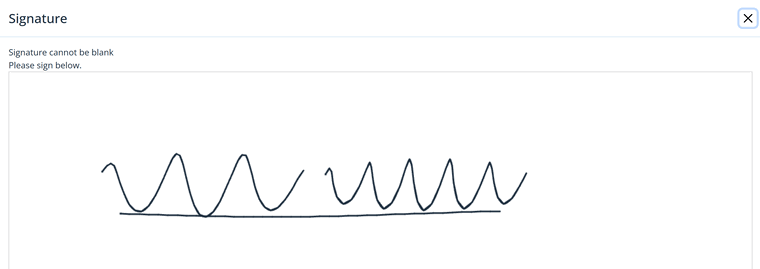
They fill in the form and sign with a finger or mouse, then click I Agree.
Everyone else in the group
From the confirmation page or the booking page, the booker clicks Invite or sign for the others. For each person they can:
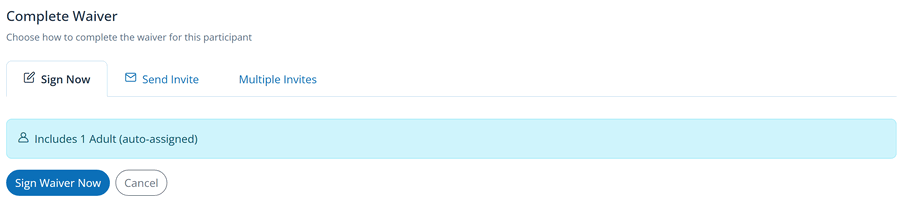
- Sign Now: sign on the same phone or tablet, for someone who's right there.
- Send Invite: email that person their own signing link.
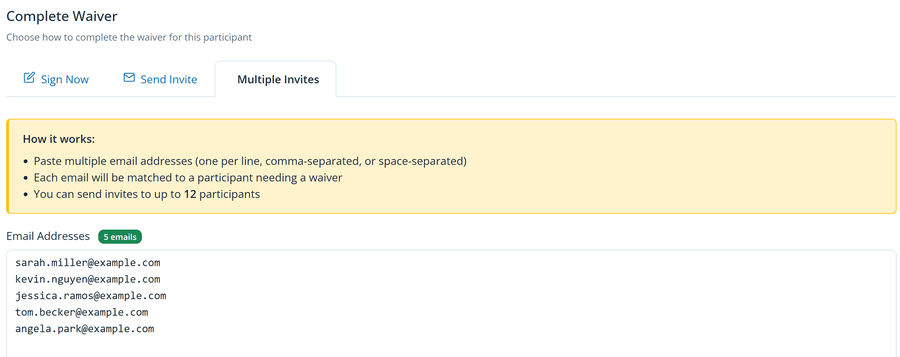
- Multiple Invites: paste a list of email addresses and send everyone their link at once. Each email is matched to a guest who still needs a waiver. This is the quickest way for party hosts.
Tracking who's done
The booking page lists everyone with their status: not signed yet, invite sent, or complete. The booker sees it on their booking page, and you see the same on the booking in the admin and on the front desk dashboard.
Fewer missing waivers. Mention in your confirmation email that everyone in the group needs to sign, and that the booker can send links from their booking page. You can edit the email under Messages › Email Templates (classic menu: Customize › Email Templates).
Signed somewhere else? If a guest signed your waiver at the kiosk or from your website, staff can attach that waiver to the booking with Find & Attach Waivers.