Create an Event with Tickets
Events are for things that happen on set dates: a competition night, a tournament, a class, a camp. Guests buy tickets online and sign the waiver right after, and you get a roster of everyone coming.
Event or activity?
- Use an event when you pick the date and guests buy a ticket for it (Ninja Warrior Night on November 14, a 6-week class).
- Use an activity when guests pick the date and time themselves from your regular schedule (Open Jump any day you're open).
Create the event
- Go to Events, click New Event and choose Event with tickets.
- Add the details: name, description, location and a photo. Click Choose image to upload your own or pick a free stock photo.
- Set when it is, add your ticket types and choose the waiver (see below).
- Set Status to Published when you're ready to sell, and click Save event. New events start as a draft that guests can't see.
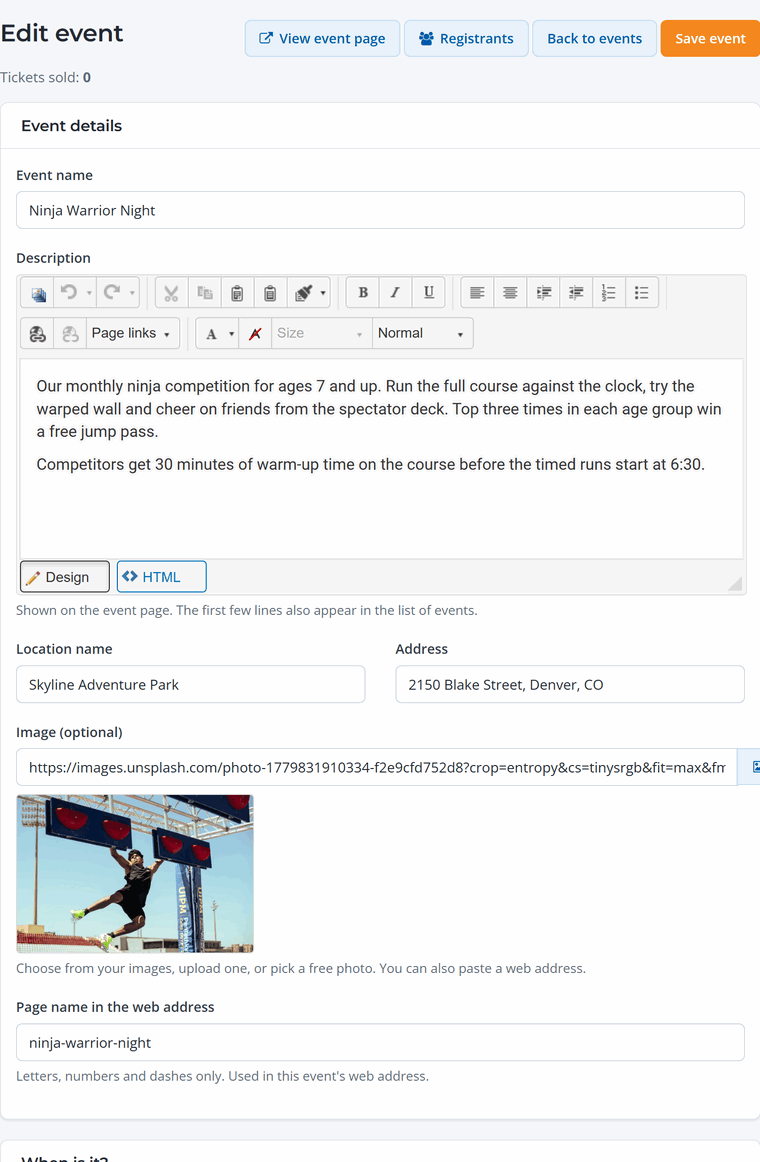
When is it?
- One date and time: a single night or day. Check All-day if there's no start time.
- Runs over a period: a date range, like a 10-week class, with a short description of the schedule.
- Specific dates and times: a list of sessions, like a camp on six days. See Classes and Camps with Several Dates.
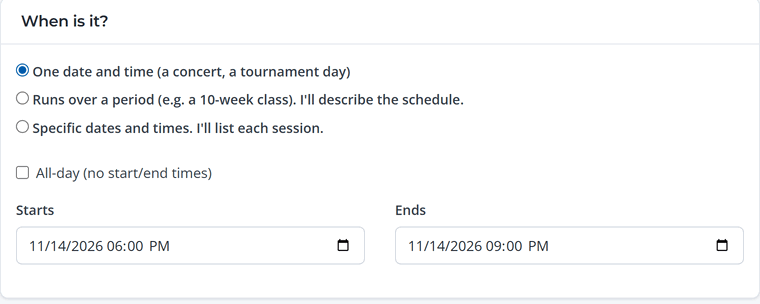
Tickets
Most events need one ticket type. Add more with Add another ticket type for things like age groups, entry classes or spectator passes. For each ticket you set:
- Ticket name, Price and Spots available (leave blank for unlimited).
- Ticket is for: the guest type. This decides who signs the waiver: adults sign their own, and a parent or guardian signs for a child.
- More ticket options: a description, the fewest and most per order, availability (on sale, hidden or sold out) and a different waiver for this ticket.
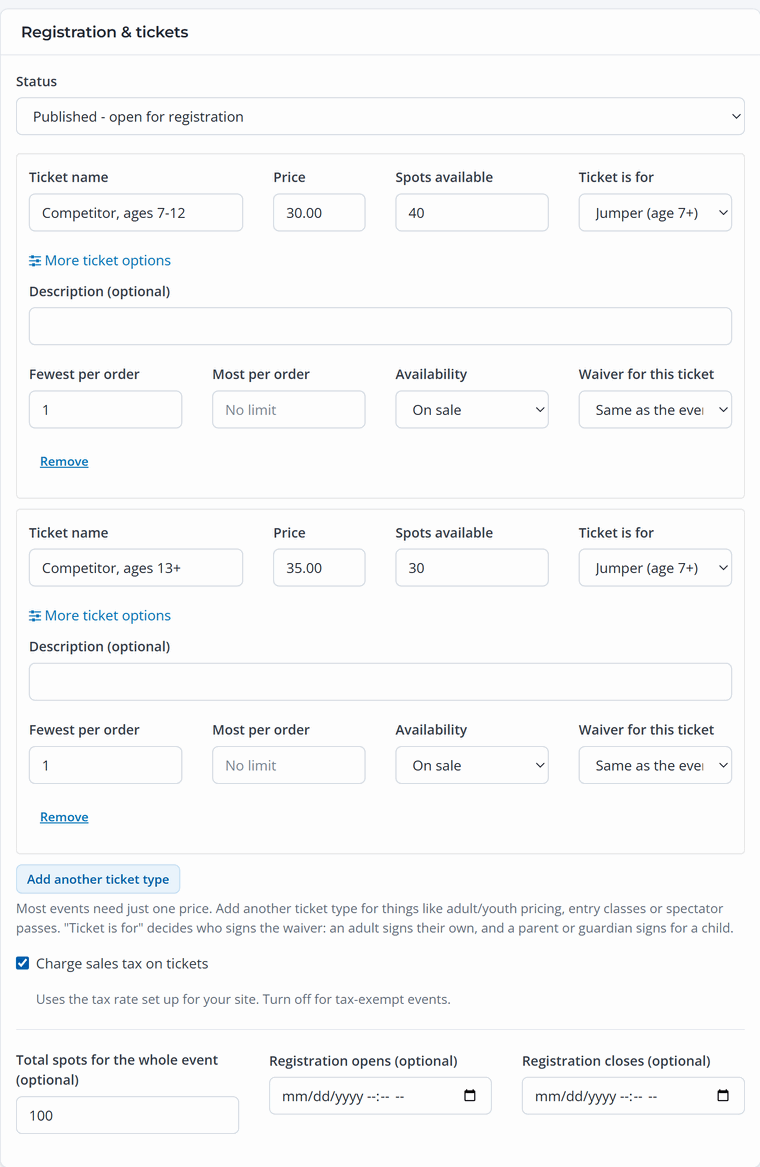
Below the tickets you can cap Total spots for the whole event, set when Registration opens and closes, and turn off sales tax for tax-exempt events.
Waivers
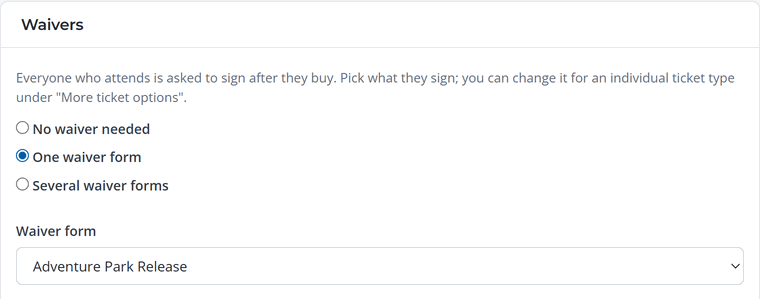
Choose No waiver needed, One waiver form or Several waiver forms. Everyone with a ticket is asked to sign right after they buy, and the roster shows who still needs to.
More options
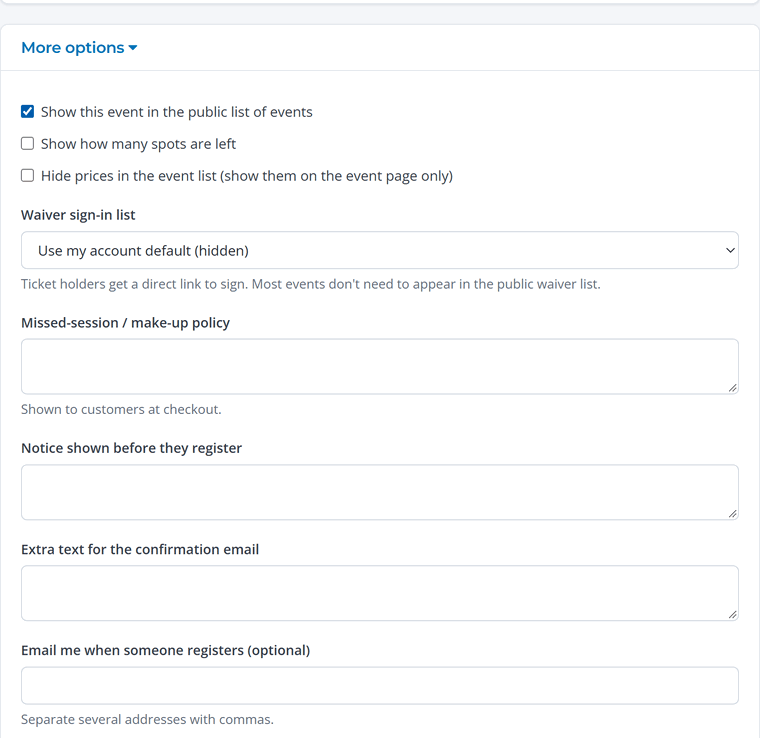
- Show this event in the public list of events, or leave it unchecked to share the link only with the people you choose.
- Show how many spots are left to encourage people to sign up early.
- Missed-session / make-up policy and a Notice shown before they register, for anything guests should know first.
- Extra text for the confirmation email, like what to bring or where to park.
Share it
Published events appear on your booking site's events list and calendar. From Events you can copy each event's link or print a QR code for posters and social media. Guests can also add events to their own calendar.