Checking Guests In at the Front Desk
On busy days the front desk needs one screen: who's arriving next, who has signed, and who still owes money. The dashboard gives you exactly that, and checking a group in takes one click or one scan.
The front desk dashboard
Your Dashboard shows today at a glance: bookings, guests, how many are checked in, who's still to come, waivers missing and any balance due. Below that, Arrivals lists today's bookings by time slot.
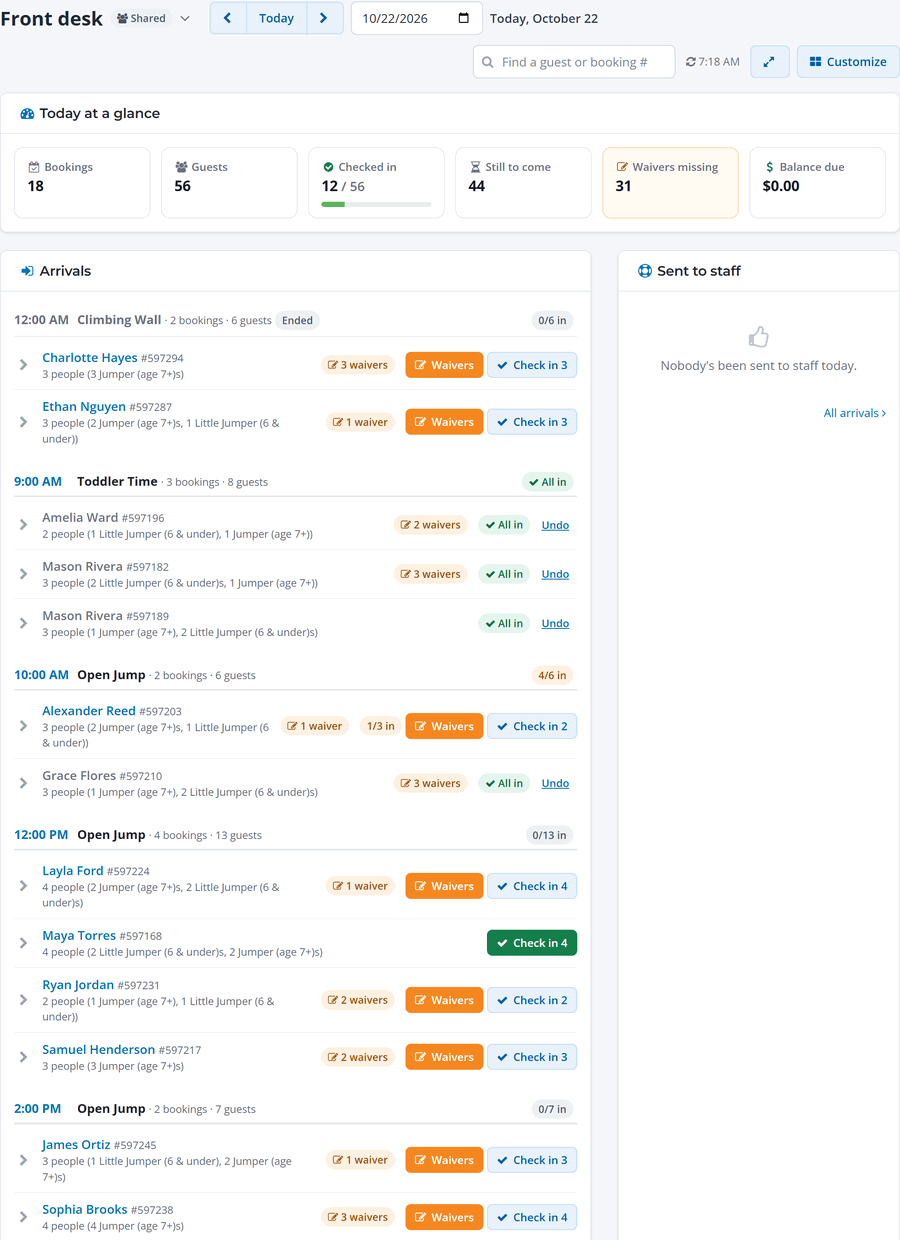
- Each booking shows its group size and any waivers still needed.
- Check in checks in the whole group. Click the arrow next to a booking to check in people one at a time.
- Waivers lets staff send a signing link or open the waiver on the desk tablet for anyone who hasn't signed.
- Undo reverses a check-in made by mistake.
Other widgets show what needs attention (missing waivers, balances), capacity for each slot, recent check-ins, and guests sent to staff from a self check-in tablet. Click Customize to choose and arrange widgets, and use the search box to find a guest or booking number.
Scan a code
Scan the guest's QR code with the WaiverFile Venue app on a phone or handheld scanner, set up under Check-in & devices › Devices (classic menu: Settings › Devices). The booking comes up with everyone's waiver status, and one tap checks the group in. Your check-in settings decide what happens if a waiver is missing or the code is for another day.
The check-in page
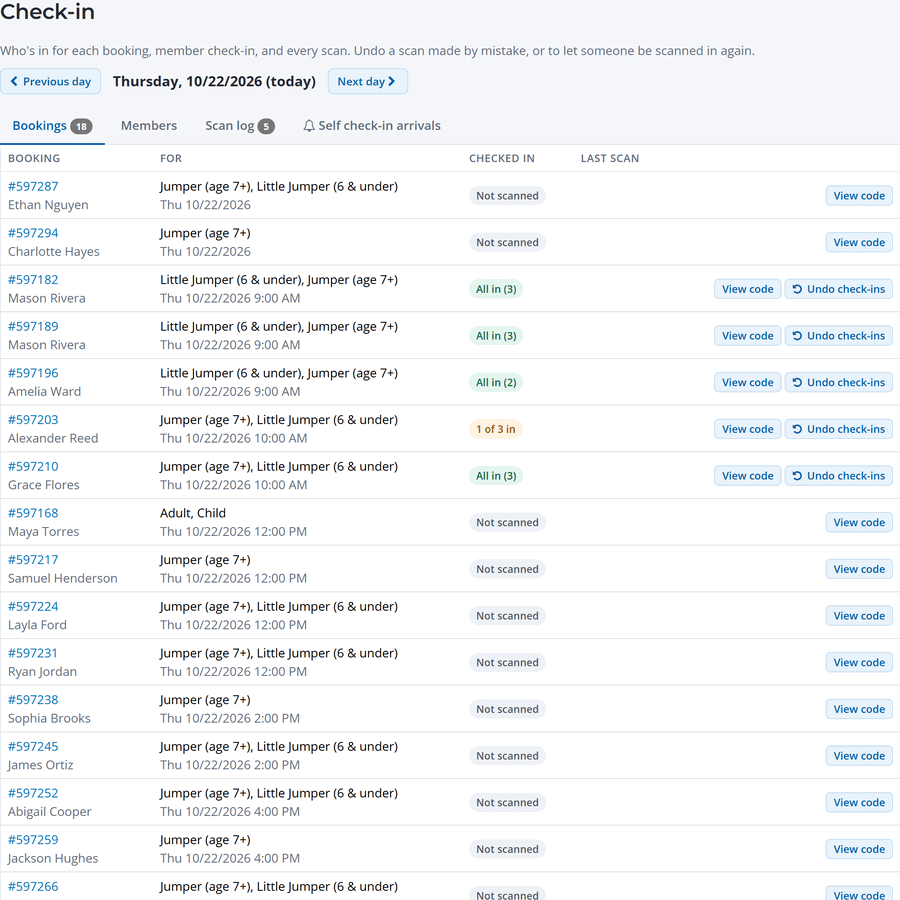
Check-in lists every booking for a day with who's checked in and the last scan. Use the tabs for Members, the Scan log (where you can undo a scan) and Self check-in arrivals.
From the booking
You can also open any booking and click the circle next to a person, or Check In All. When everyone is in, the booking's status changes to Checked In automatically.
Balances and walk-ins
If a group owes money when they arrive, collect it at the desk by cash, check, card reader or card on file: use Find booking on the New sale screen and Take payment. To sell to guests who walk in without a booking, use New sale. See Point of Sale at the Front Desk.
Members
Scan a member's card, or search for them on the Members tab of the check-in page. Staff see right away if the membership is paused, has a payment problem or needs a waiver. Visit packs use up one visit per check-in.