Reschedule, Cancel or Change a Booking
Plans change. From any booking you can move it to a new date, add or remove items, or cancel it with a refund, and the guest's booking page updates straight away.
Reschedule
- Open the booking and click Reschedule (or Change date next to the date).
- Choose who's moving. Everyone is selected. Uncheck anyone keeping their current date.
- Pick the new date and click Show available times, then choose a time.
- Review the price. WaiverFile shows what the new date costs compared with what they booked, for example a weekend rate. You decide what to do about any difference, and how it shows on the invoice.
- Add a message for the guest if you like, and click Move booking.
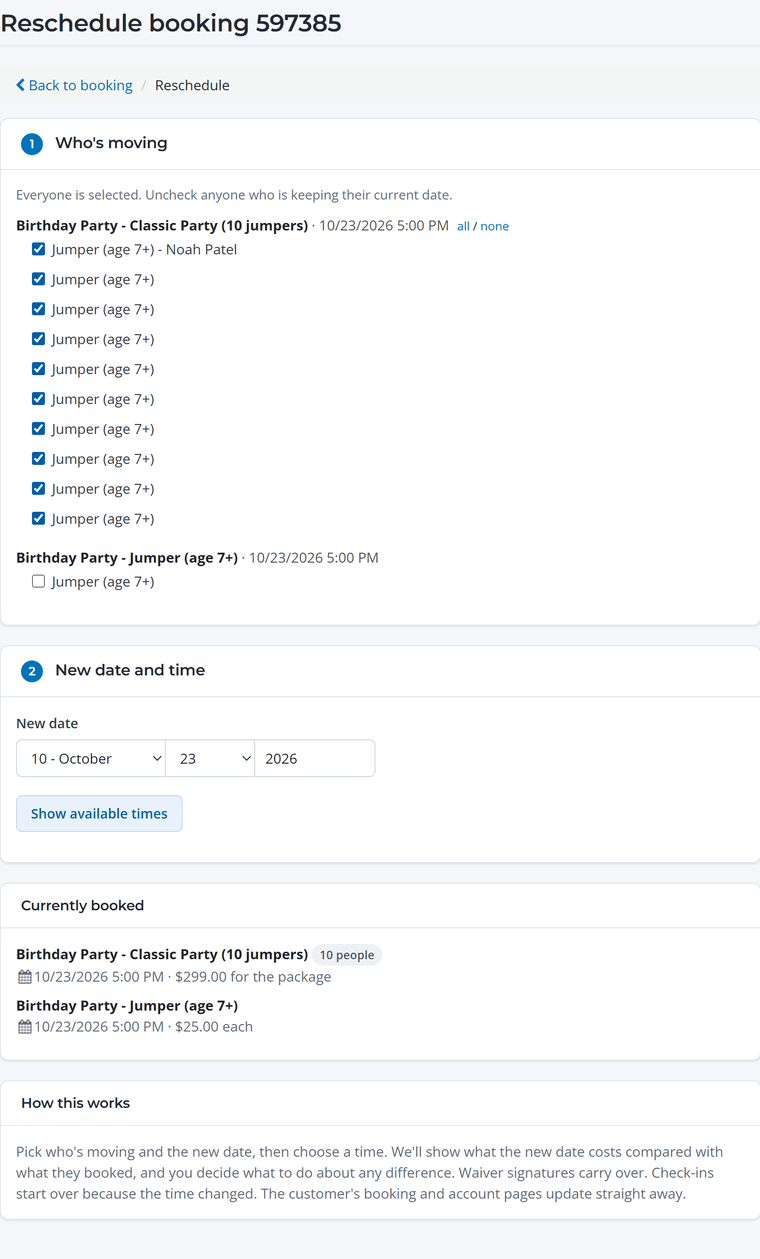
Signed waivers carry over, so nobody has to sign again. Guests can also ask for a new date from their booking page; you'll see the request on the booking and move it here.
Add or change items
Click Add/Edit Items to change quantities, remove an item, or add something: another activity, a package, an add-on (like extra pizza), or an Adjustment for a one-off charge or credit with your own description.
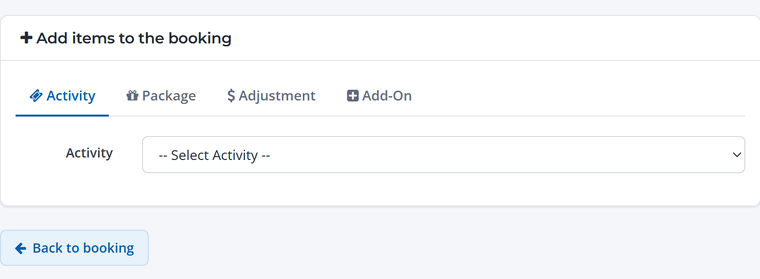
The balance due updates automatically. Collect any difference with Collect Payment.
Cancel
- Click Cancel Booking.
- Choose what to cancel: the Entire Booking, or Selected Participants Only if just some people can't make it.
- Choose the refund. Pick which payments to refund and how much. The recommended amount follows your cancellation policy, and tax is worked out for you.
- Add a reason (optional), leave Email the customer a refund confirmation checked, and click Process Cancellation.
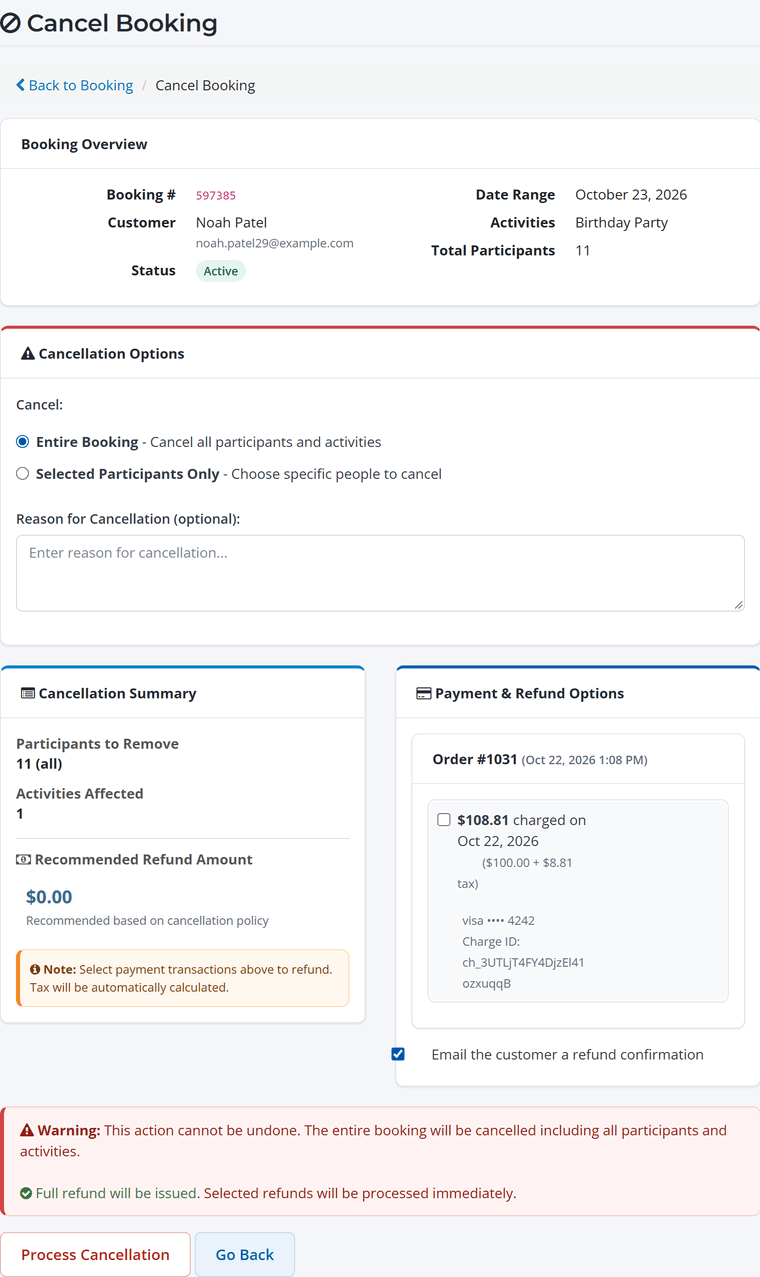
Refunds go back to the original card. If a refund fails, nothing is cancelled, so you can try again.
When guests cancel themselves
Depending on your cancellation policy, guests can cancel from their booking page and get an automatic refund, or send you a cancellation request to approve. See Booking Fee, Cancellations and Saved Cards.