Event Registrants and Rosters
Every event has a roster of everyone who bought a ticket, which ticket they chose and whether their waiver is signed. Use it to plan the day and to make sure nobody takes part without a waiver.
Open the roster
Go to Events and click the number in the Participants column, or click Registrants at the top of the event's edit page.
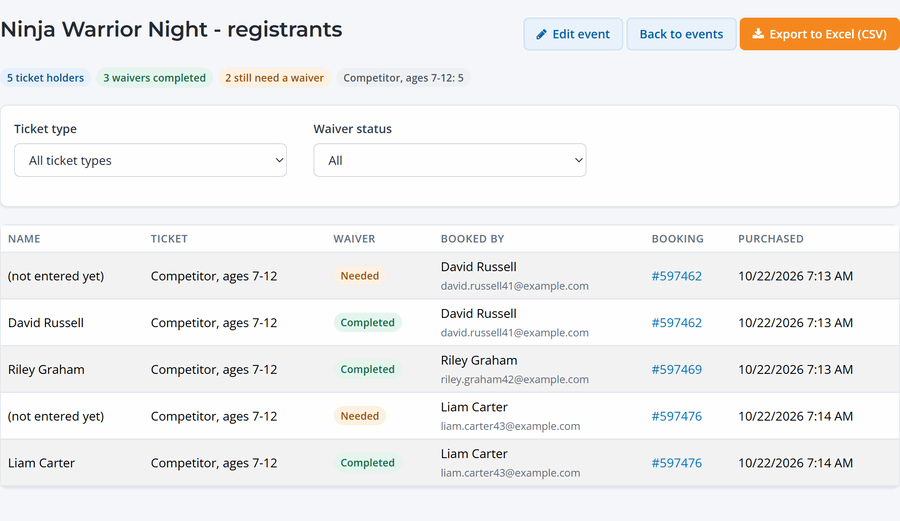
- Filters: show one ticket type, or only people whose waiver is still needed.
- Booked by: the person who bought the tickets, with a link to their booking. Use it to see the whole group at once or to change their order.
- Export to Excel (CSV): download the roster for coaches, volunteers or a sign-in sheet.
Missing waivers
Registrants who haven't signed show as Needed. Open their booking to send a signing link, or sign them in on a tablet when they arrive. If you've turned on check-in codes, staff also see missing waivers when they scan.
On the day
Check registrants in from their booking, the front desk dashboard or by scanning their code. See Checking Guests In at the Front Desk. For ticket sales across all events, see the Event sales report under Reports.