Card Readers
A card reader lets guests tap, insert or swipe their card at your desk. WaiverFile works with Stripe's smart readers, which connect to the internet on their own. There's nothing to install on your computer.
Which readers work
- Stripe Reader S700, which connects over Wi-Fi or with its Ethernet dock.
- Stripe Reader S710, the same reader with cellular as well, if your Wi-Fi isn't reliable.
The reader doesn't plug into your computer. Staff send the amount to it from the New sale screen (or the WaiverFile Venue app), and the result comes back on screen.
Order a reader
Readers come loaded with Stripe's security keys for your account, so they have to be ordered through WaiverFile. A reader bought somewhere else won't work. Contact WaiverFile support to order one, and we'll arrange for it to be shipped to you, ready to pair with your account.
Add a reader
You need an active payment account first (see Connect Your Payment Account). Without one, the page shows Set up payment processing first.
- Connect the reader. Turn it on and connect it to your Wi-Fi, or put it on the Ethernet dock.
- Open the Card readers tab. Go to Check-in & devices › Devices in your dashboard and click the Card readers tab.
- Get a pairing code. Click Add a reader. The window that opens shows the reader's admin PIN. On the reader, open Settings (swipe in from the left edge), enter that PIN, and choose Generate pairing code.
- Add the reader. Enter a Reader name (like "Front desk") and the Pairing code from the reader's screen. The first time, also enter the business address where the readers are used. Click Add reader.
Pairing codes expire after a few minutes. If yours has, generate a new one on the reader and try again: the window stays open with what you typed.
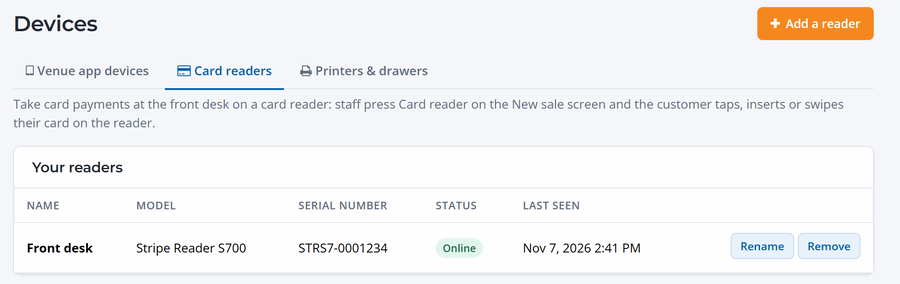
Manage your readers
The list under Your readers shows each reader's name, model, serial number, whether it's online, and when it was last seen. Use Rename to change the name staff see on the New sale screen. Remove deletes the reader from your account. To use it again, add it with a new pairing code.
Using the reader
On the New sale screen, staff pick the reader once (the browser remembers it) and press Card reader or F2. See Cash, Card and Other Payments at the Desk.
- The reader needs an internet connection to take a payment.
- When the customer has a name and email on the booking, Stripe also emails them its own receipt.
- To refund a reader payment, refund it from the order like any card payment. The card doesn't need to be present. See Orders and Refunds.
Only Stripe readers. Readers from other companies, and tap to pay on a phone, don't work with WaiverFile.