Two-Step Verification
Two-step verification protects your WaiverFile login even if someone learns your password. When you sign in on a new computer or phone, you enter a 6-digit code from your phone as well as your password. Setting it up takes about two minutes.
How it works
- A code on new browsers only. After you enter a code, you can check Remember this browser. That browser won't ask again for 30 days (7 days on HIPAA accounts).
- It's for your admin login. Guests who sign waivers or book online are never asked for a code.
- One setup per login. If your login can reach more than one WaiverFile account, the same setup covers all of them.
- The WaiverFile Venue app asks for it too. When you sign in to the app with your email and password, it asks for the same code.
Set it up
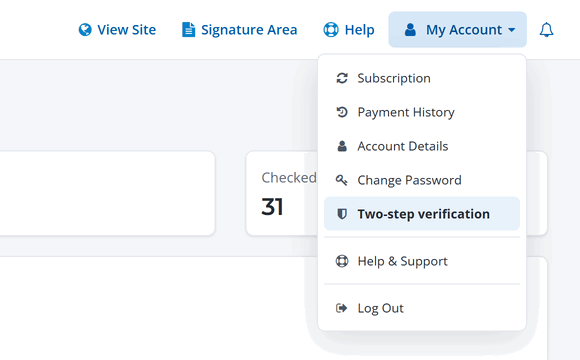
- Open your two-step settings. In the top right of the admin area, go to My Account › Two-step verification and click Set up two-step verification. You may be asked for your password first.
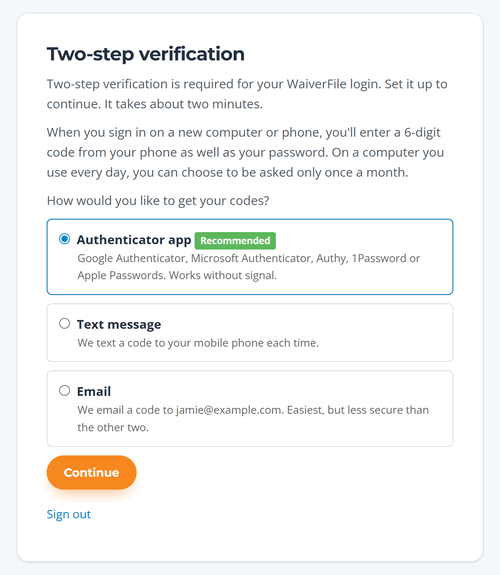
- Choose how you'll get your codes. An authenticator app is the most secure and works without phone signal.
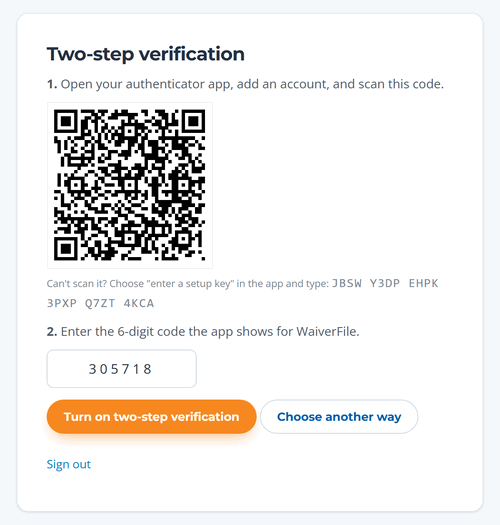
- Prove it works. For an app, scan the QR code and enter the 6-digit code the app shows. For a text or email, enter the code we send.
- Save your recovery codes. Copy, download or print them, check I saved these codes, and click Done.
You can get your codes three ways:
| Method | How it works | Good to know |
|---|
| Authenticator app (recommended) | An app on your phone shows a new code every 30 seconds. | Works with Google Authenticator, Microsoft Authenticator, Authy, 1Password or Apple Passwords. No signal needed. |
| Text message | We text a code to your mobile phone each time. | Outside the US and Canada, enter your number with + and your country code. Message and data rates may apply. |
| Email | We email a code to your login's email address. | Easiest, but less secure. Not offered on HIPAA accounts. |
Your recovery codes
At the end of setup you get ten recovery codes. Each one signs you in once if you can't get a code from your phone. You only see them once, so copy, download or print them before you click Done.
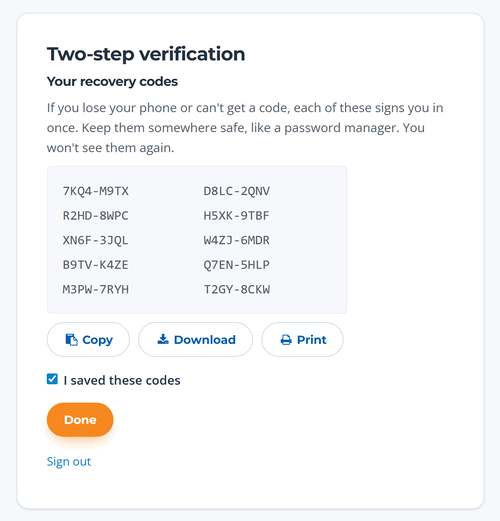
Keep them in a password manager. If you lose your phone, a recovery code gets you back in right away, without waiting for anyone to help.
Signing in with a code
After your password, enter the 6-digit code from your app, text or email and click Verify and sign in. Codes from a text or email work for 10 minutes.
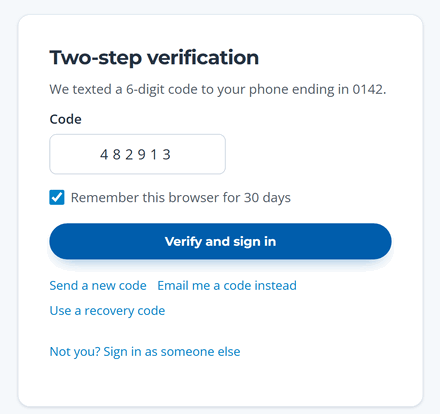
- Send a new code if a text or email didn't arrive. After several codes in a few minutes, we ask you to wait and tell you how long.
- Email me a code instead if you don't have your phone (not on HIPAA accounts).
- Use a recovery code if you can't get a code any other way.
App codes not working? Authenticator codes depend on your phone's clock. Make sure your phone sets its date and time automatically, then try the newest code.
If you lose your phone
Try these in order:
- Use a recovery code. On the code screen, click Use a recovery code and enter one of the codes you saved. Then set up your new phone (see Manage your setup).
- Get a code by email. Click Email me a code instead. This isn't offered on HIPAA accounts.
- Ask an owner or administrator. Someone with Owner or Administrator access on your account can reset your two-step verification from Business › Admin Access (Settings › Manage Admin Access in the classic menu). You'll set it up again at your next sign-in.
- Owners: call WaiverFile support. Call 1 (877) 791-9984. We'll confirm who you are before we reset anything, so have your billing details handy, and expect us to email a code to your login's address.
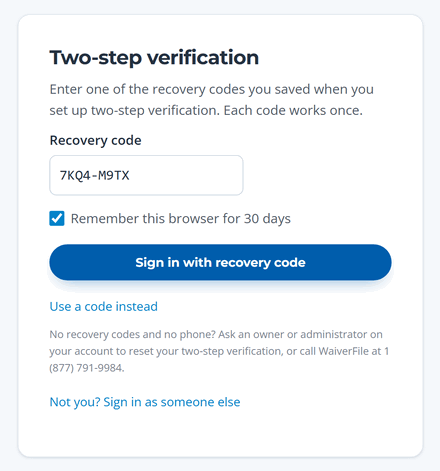
We never skip the second step for you. WaiverFile support won't send you a code that bypasses two-step verification or turn it off over the phone. A reset happens only after we've confirmed who you are, and we email you when it's done.
Manage your setup
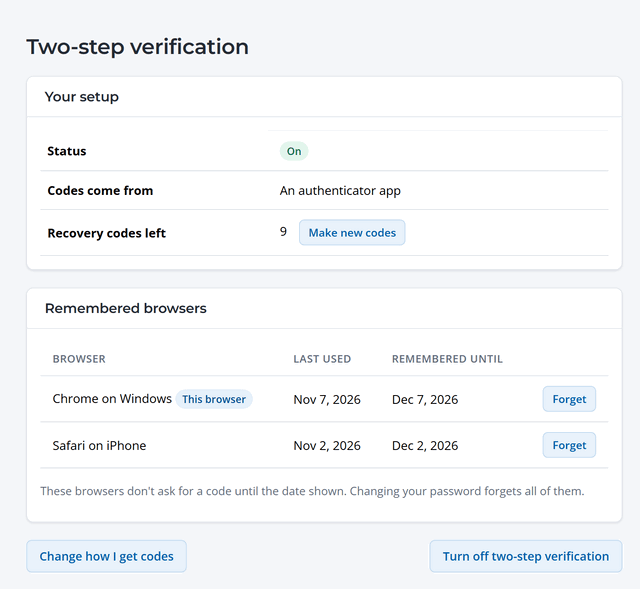
Go to My Account › Two-step verification to:
- Change how I get codes, for example after you get a new phone. Browsers remembered under your old method will ask for a code again.
- Make new codes if you've used most of your recovery codes or lost them. Your old codes stop working.
- Forget a browser you don't use any more. Changing your password forgets all of them.
- Turn off two-step verification, unless it's required for your login.
Getting a new phone? Many authenticator apps can move your accounts to the new phone. If yours can't, sign in with a recovery code, then use Change how I get codes to set up the new phone.
Require it for your team
Account owners can require two-step verification for everyone who signs in to the account's admin area.
- Set it up for your own login first. You can't require it for others until you use it yourself.
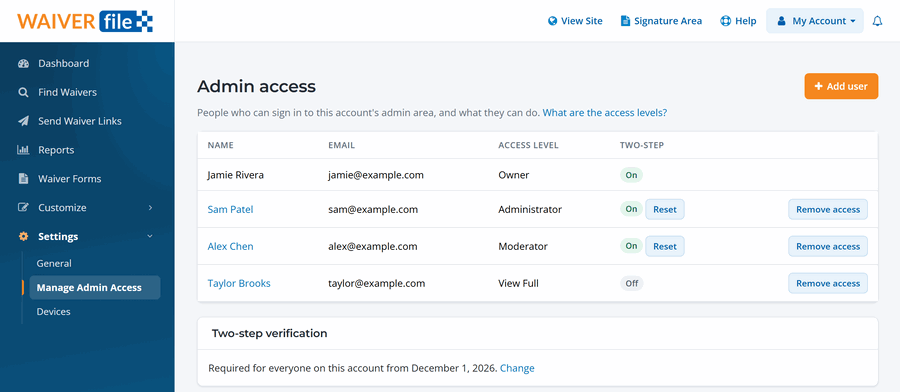
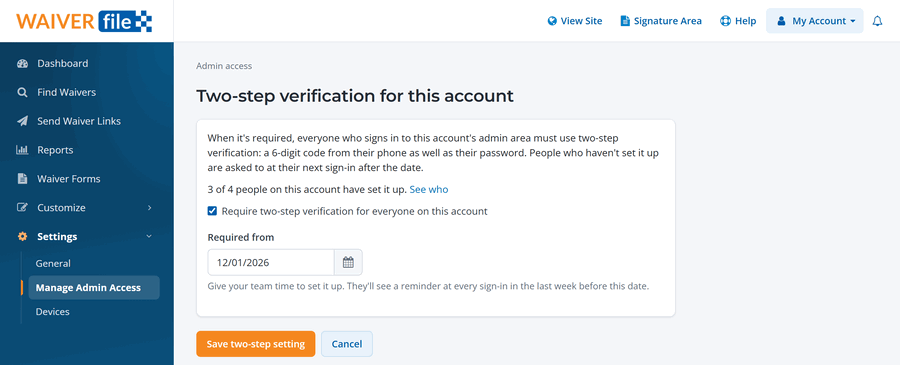
- Open Admin Access. Go to Business › Admin Access (Settings › Manage Admin Access in the classic menu). The Two-step column shows who has it on. Under Two-step verification, click Change.
- Turn it on and pick a date. Check Require two-step verification for everyone on this account and choose a Required from date. Give your team a week or two.
- Save. Until the date, people who haven't set it up see a reminder when they sign in, every day in the final week. From the date, they must set it up before they can sign in.
Reset someone who lost their phone
Owners and administrators can click Reset next to a team member in the Two-step column. Their old app, phone number, recovery codes and remembered browsers stop working, we email them, and they set it up again at their next sign-in. Only reset someone when you know it's really them asking. To reset an owner, the owner calls WaiverFile support.
Common questions
Do guests need a code to sign a waiver or book?
No. Two-step verification is only for people who sign in to your admin area.
We share one front desk login. What should we do?
Give each person their own login. Extra admin users are free, and each person's browser can be remembered for 30 days. If you must keep a shared login, use the email method with an inbox everyone at the desk can read (not available on HIPAA accounts).
Is two-step verification required?
Your account owner can require it for your team. WaiverFile may also require it for some logins, such as HIPAA accounts and account owners. If that applies to you, we'll email you and show the date when you sign in, well ahead of time.
I asked for too many codes and it says to wait.
The message tells you how many minutes to wait. If you can't wait, use a recovery code, or call us at 1 (877) 791-9984 and we can clear the limit so you can try again.